Presentations.ai Review: Stress-Testing the "Anti-Fragile" Maker (2026)

24Slides designers found Presentations.ai effective for fast internal drafts. However, its rigid "anti-fragile" templates frequently override corporate brand guidelines, making it restrictive for high-stakes pitches.
Search for a presentations.ai review today, and you will likely find tech bloggers repeating the software's marketing claims. But what happens when you actually put the tool in the hands of professionals?
At 24Slides, we've designed over 2 million slides across 13+ years. We use AI every day, so we know the difference between a flashy software demo and a functional corporate asset.
To separate hype from reality, our Marketing Designers, Gabriel Morales and Leonardo Acaro, tested presentations.ai to see if its "Anti-Fragile" system actually survives a boardroom environment.
In this definitive 2026 presentation AI review, we break down the core features, evaluate the presentations.ai pricing, and reveal exactly how it handles strict corporate branding.

TL;DR: Presentations.ai at a Glance
If you are in a rush, here is our 60-second agency verdict:
We stress-tested presentations.ai against professional design standards. It creates stunning slides quickly and wins on layout safety due to its "Anti-Fragile" rigid templates. However, it completely locks creative freedom, and exporting to PowerPoint requires a paid plan (starting at $240/year).
| METRIC | DETAILS |
|---|---|
| Overall Rating | 7.0 / 10 (Fast and stable, but lacks deep customization) |
| Starting Price | $20 / month (Billed annually at $240 for the Pro plan) |
| Free Plan Limits | Allows basic creation (100 credits), but zero downloads or exports are permitted. |
| Best For | Students, small business owners, and non-designers needing quick internal drafts. |
| Not For | Enterprise teams needing pixel-perfect brand compliance or overlapping custom graphics. |
| Export Formats |
PowerPoint (.pptx) and PDF (strictly paywalled).
|
📝 Note on our testing methodology: To show you exactly what you can achieve today without spending a single dollar, we conducted our tests using a 100% free account. Because Presentations.ai strictly locks all downloads behind a $240/year paywall, we did not test PowerPoint exports. Instead, our review focuses entirely on the platform's native design limits, brand compliance, and content generation workflow.
What Is Presentations.ai and How Does It Work?
Presentations.ai is a cloud-based AI presentation maker that prioritizes extreme speed and layout consistency over manual design freedom.
If you read their 2026 marketing materials, they heavily promote "Clip-E," an onboard AI assistant that supposedly acts like a colleague handling research and conversational edits. However, during our hands-on testing, we found that "Clip-E" is really just the branding for their backend algorithm. The actual interface functions much more like a strict template-injector than a fluid, conversational chatbot.
Unlike traditional presentation software, the platform uses what it calls an "Anti-Fragile" design system. This means the AI strictly groups elements together into locked templates so non-designers cannot accidentally break the slide's alignment or overlap text.
The 5 Presentation Creation Workflows
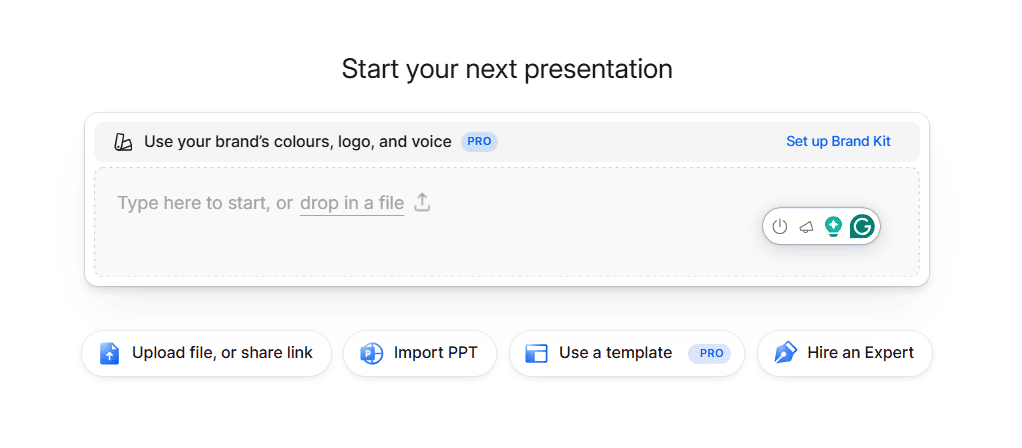
As seen on the main dashboard, the platform offers five primary ways to build a deck:
1. Prompt-to-deck generation
The most popular way to use the platform is to start from scratch. You type a detailed description of your goal into the main prompt box (e.g., "Create a pitch deck for a social media marketing strategy"), select your slide count, and leave the AI model on "Standard" (since Pro models are paywalled). The AI engine generates the entire deck in roughly 60 seconds.
2. Document and URL Import
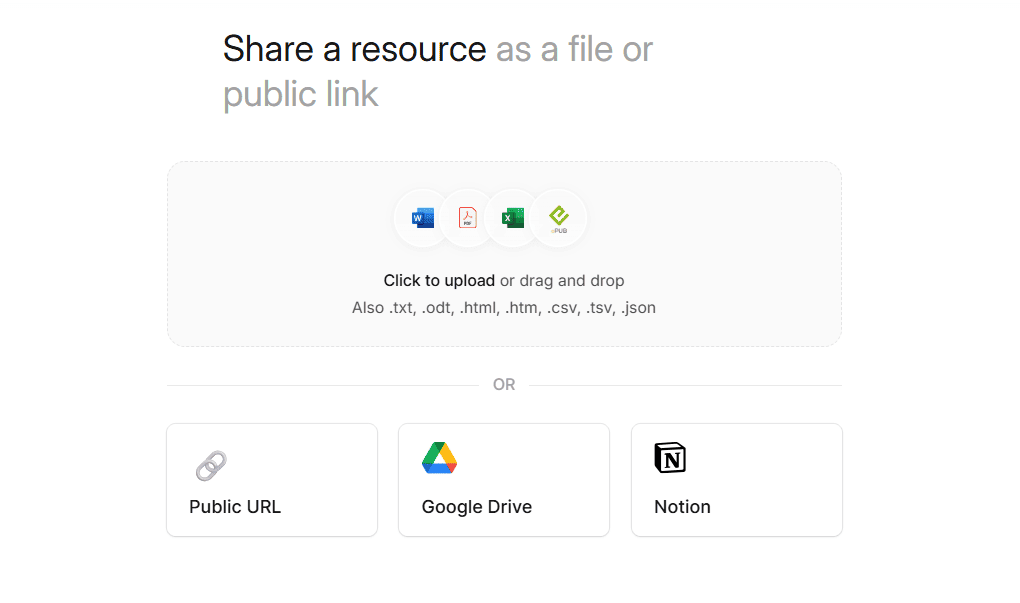
If you don't want to start from a text prompt, Presentations.ai allows you to import existing content. You can upload PDFs, Word documents, Excel sheets, or paste a live URL. The AI reads the source material, extracts the core information, and automatically maps it into its templates.
3. Import PPT
If you already have a rough deck, you have the option to import an existing PowerPoint file directly into the platform to let the AI instantly reformat and redesign it using its native layouts.
4. Pro Templates
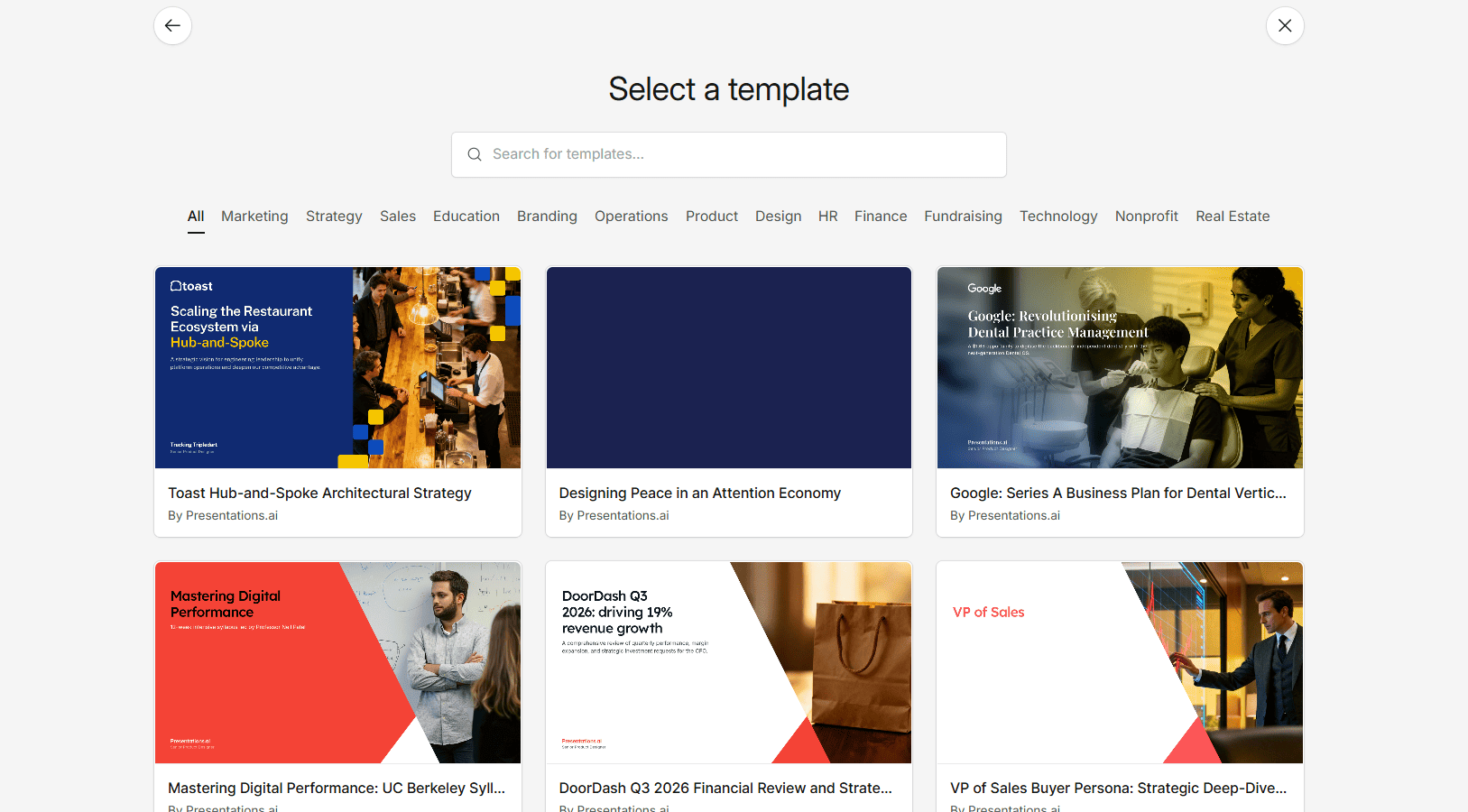
Alternatively, instead of starting from a blank prompt, users on paid tiers can select "Use a template." This forces the AI to build your presentation within specific structural guardrails (like a "Brand Guidelines" or "Campaign Strategy" deck), limiting the chances of the AI generating an irrelevant layout.
5. The "Hire an Expert" Option (A Reality Check)
Interestingly, the platform itself acknowledges the limits of purely automated design. Inside the dashboard, Presentations.ai offers a "Hire an expert" service.
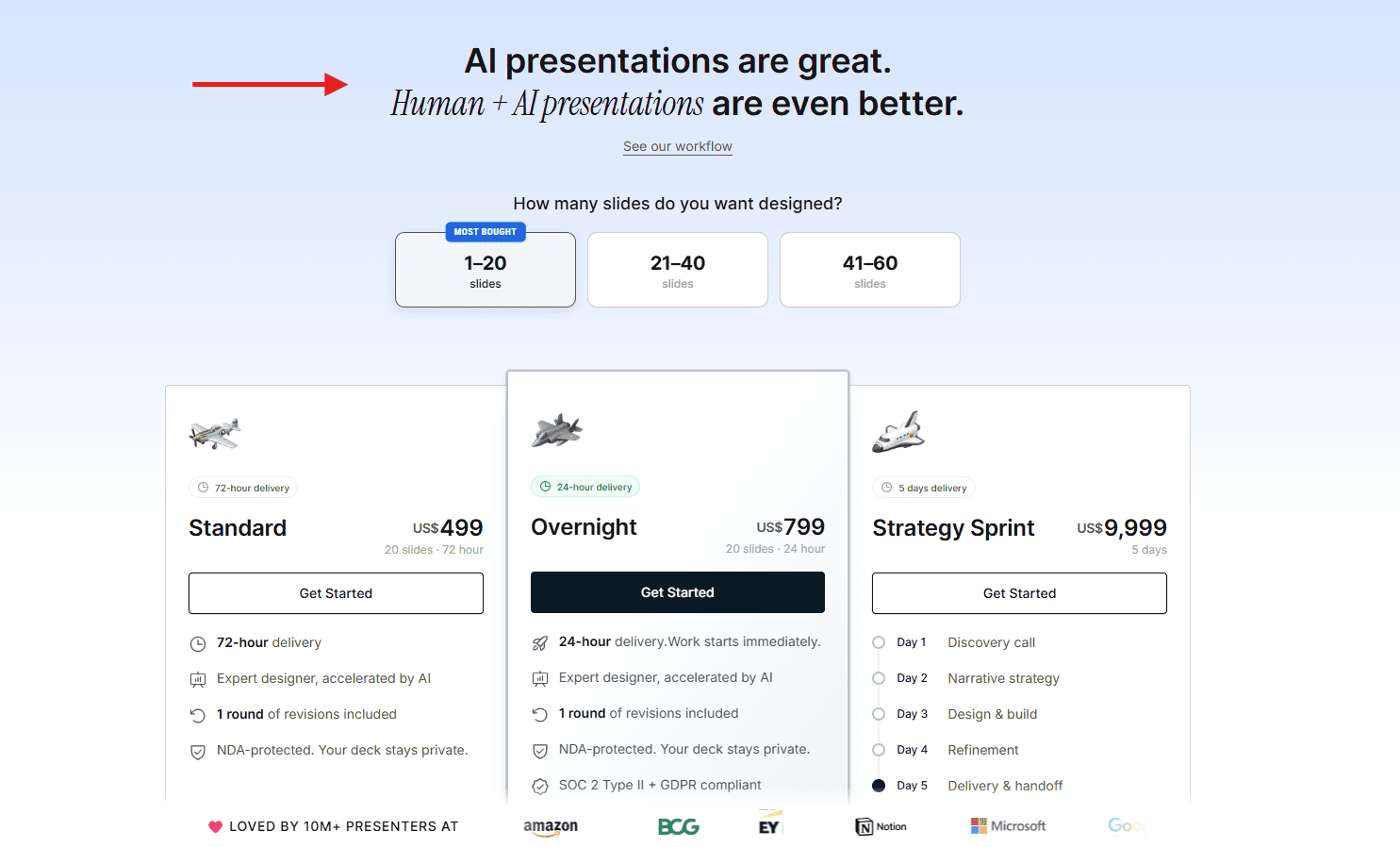
As clearly stated on their pricing page: "AI presentations are great. Human + AI presentations are even better." It is a remarkably honest admission from an AI software company, and it perfectly validates the hybrid approach we found throughout our testing: AI is fantastic for building a fast first draft, but achieving true professional polish still requires a human touch.
Other Key Features (Beyond Generation)
While the workflows above cover how to build your initial slides, Presentations.ai also includes several backend features aimed at business teams:
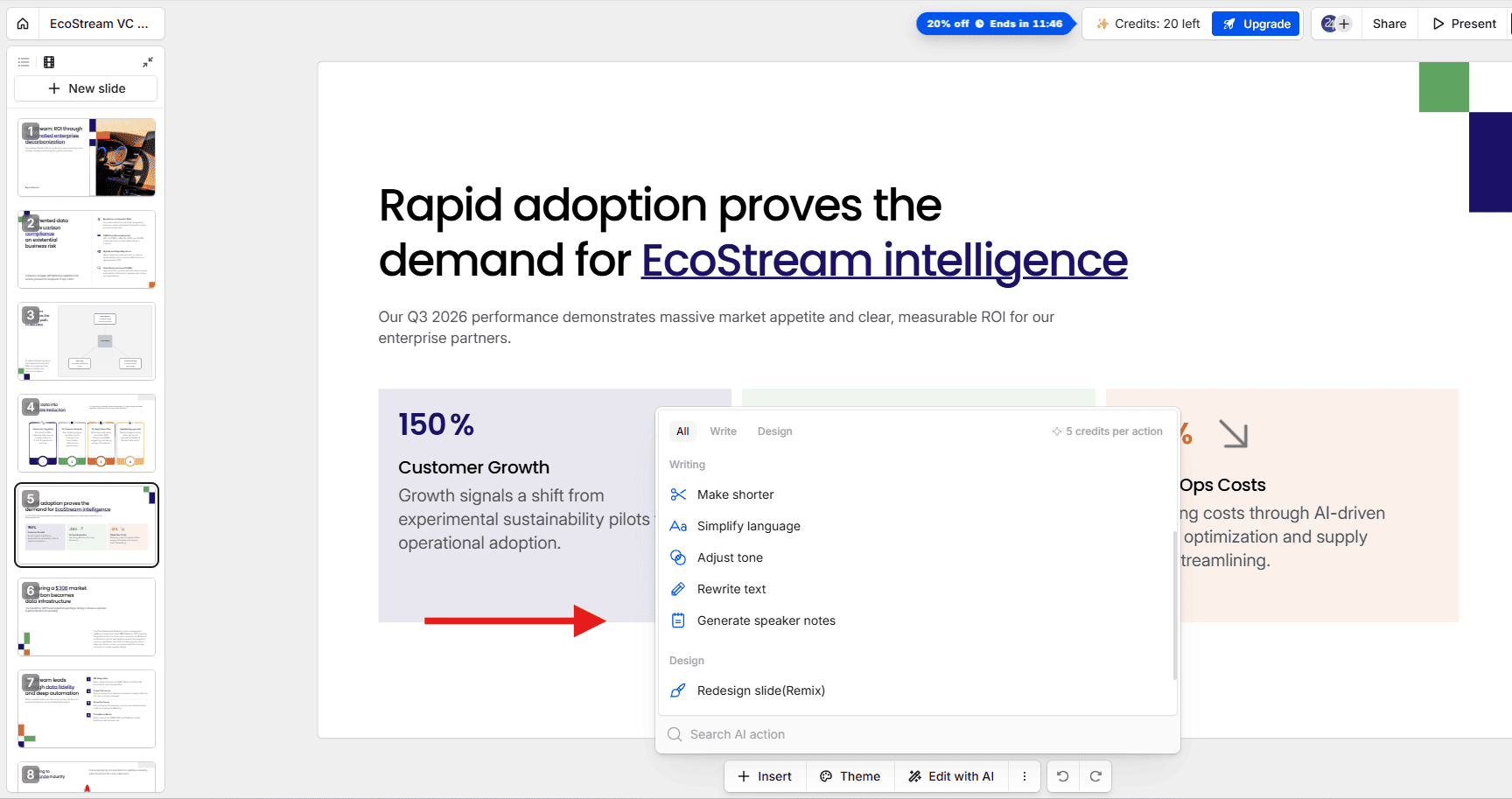
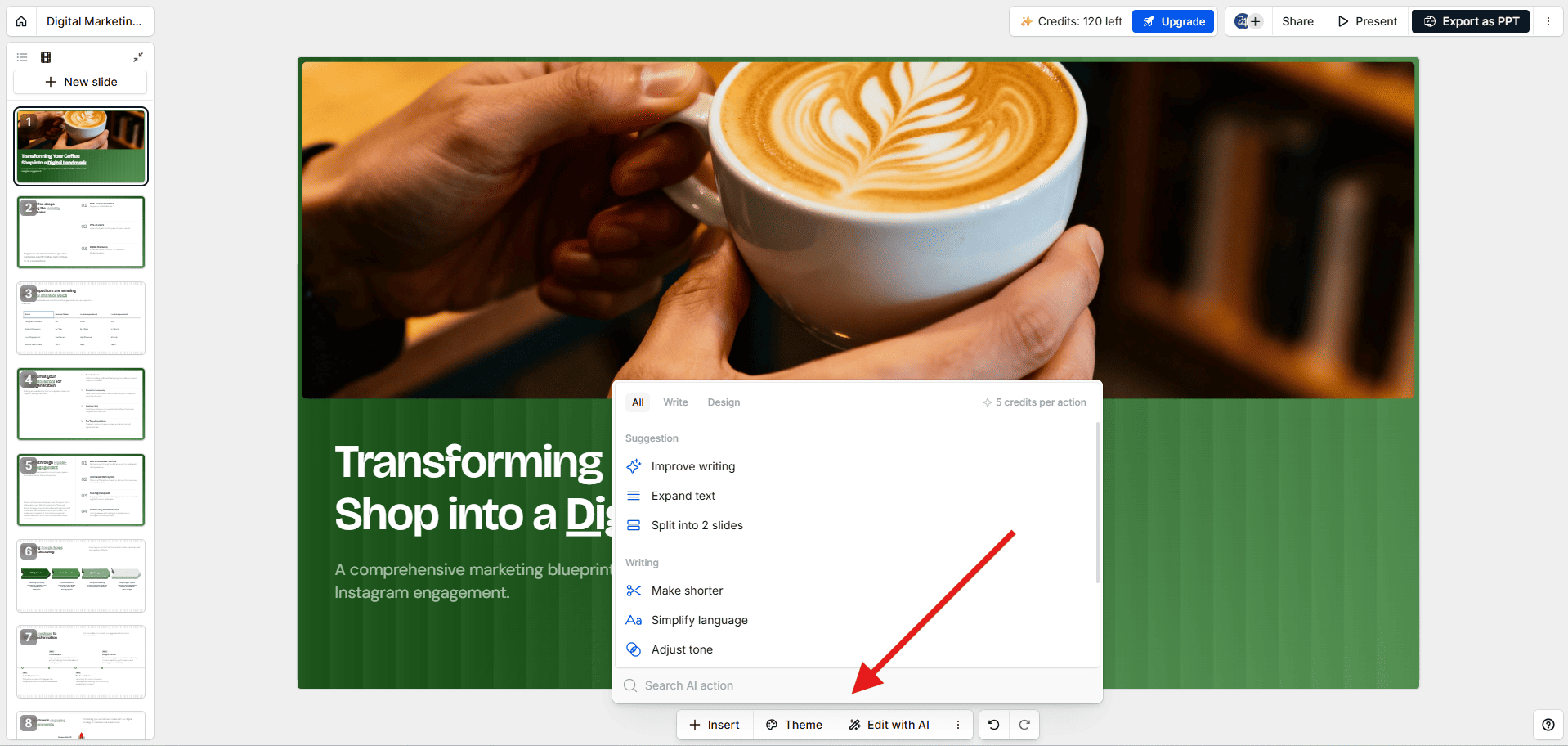
- Edit with AI: This menu allows you to shorten text, adjust the tone, generate speaker notes, or "Remix" the slide to force the AI to apply a new layout variation. (Note: Every action you take in this menu costs 5 AI credits).
- Brand Sync (Paid Feature): Pro and Gold users can define brand guidelines (colors, fonts, and logos) and create pre-designed templates. To automate this, you can simply enter your company's homepage URL, and the AI will attempt to extract your brand style automatically.
- Collaboration & Analytics (Paid Feature): Presentations.ai markets itself as "Google Docs for presentations." It supports real-time multiplayer editing, commenting, version history, and approval workflows. It also features built-in tracking so you can monitor audience engagement and slide-by-slide drop-off metrics once you share a presentation link.
How to Use Presentations.ai to Create a Presentation
For this example, I am using a 100% free account, so you can follow the exact same process without needing a paid plan.
Step 1: Sign Up or Log In
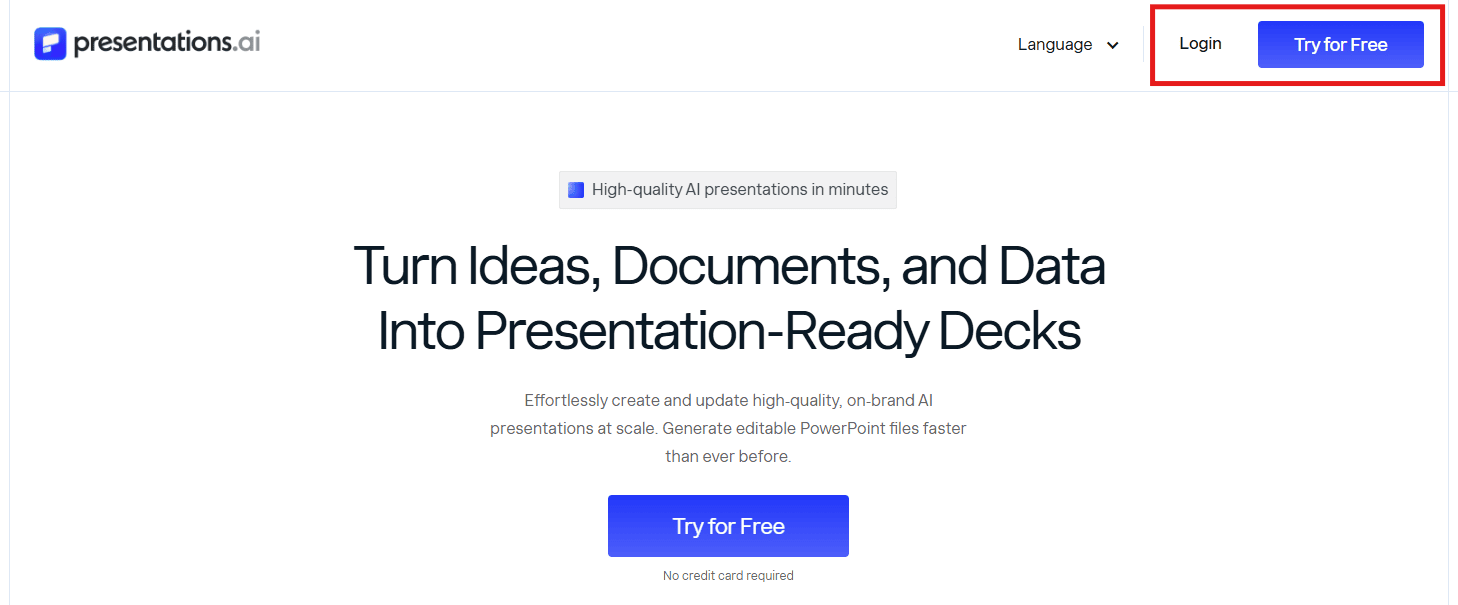
- Go to the Presentations.ai website.
- Click "Login" or "Try for Free" to create an account. The sign-up process is quick.
Step 2: Choose a creation method
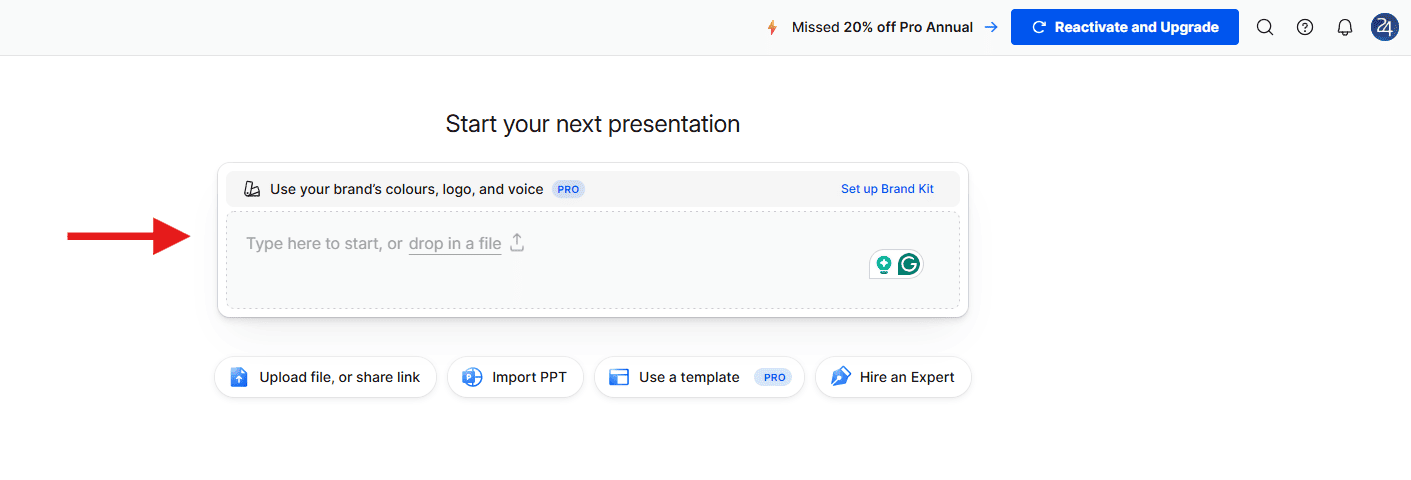
- Go to the "Start your next presentation" section.
- Locate the main text prompt box. While the platform offers many options to create your presentation, we will stick to the default text prompt box for this tutorial.
Step 3: Describe Your Presentation
- Type your goal into the prompt box. Specificity is your superpower; always tell the AI your exact role, audience, and tone. For example:
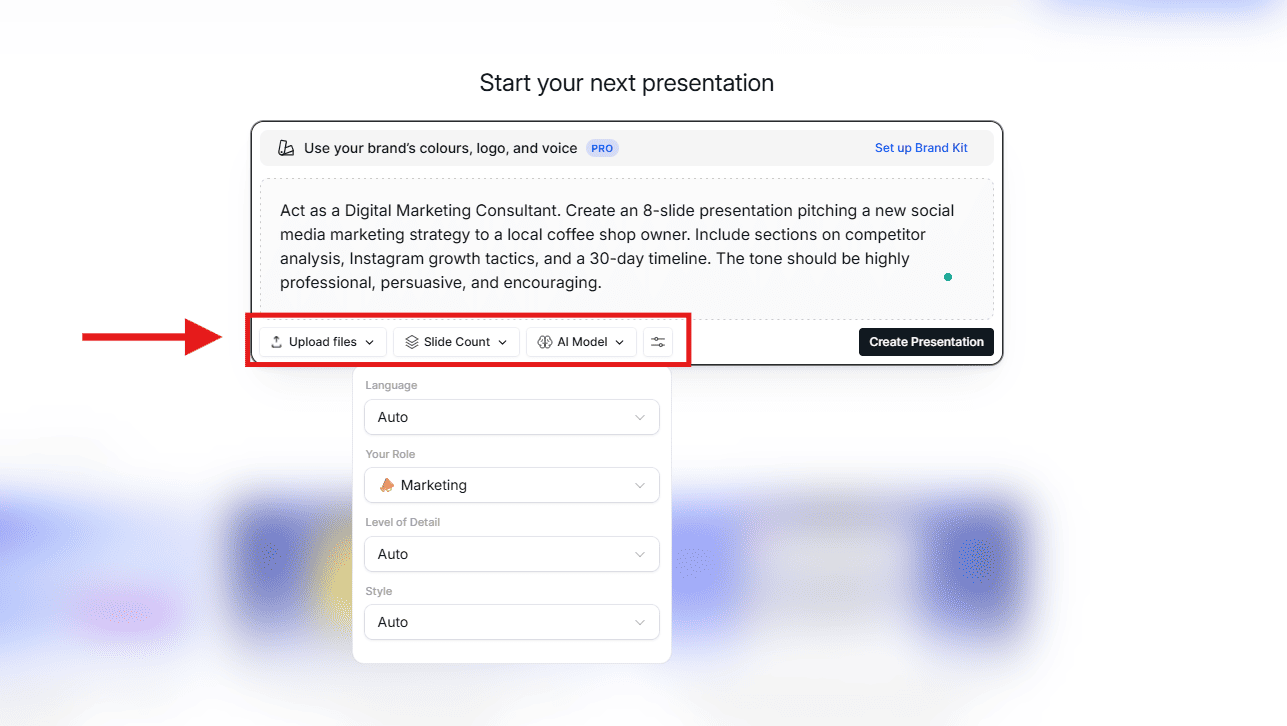
"Act as a Digital Marketing Consultant. Create an 8-slide presentation pitching a new social media marketing strategy to a local coffee shop owner. Include sections on competitor analysis, Instagram growth tactics, and a 30-day timeline. The tone should be highly professional, persuasive, and encouraging."
Before clicking Create Presentation, quickly adjust the settings below the box:
- Slide Count: Set your preferred length.
- AI Model: Leave on "Standard" (Pro and Gold are paywalled).
- Settings Icon: Click the toggle icon to manually fine-tune your language, role, and style.
Step 4: Answer Clarifying Questions
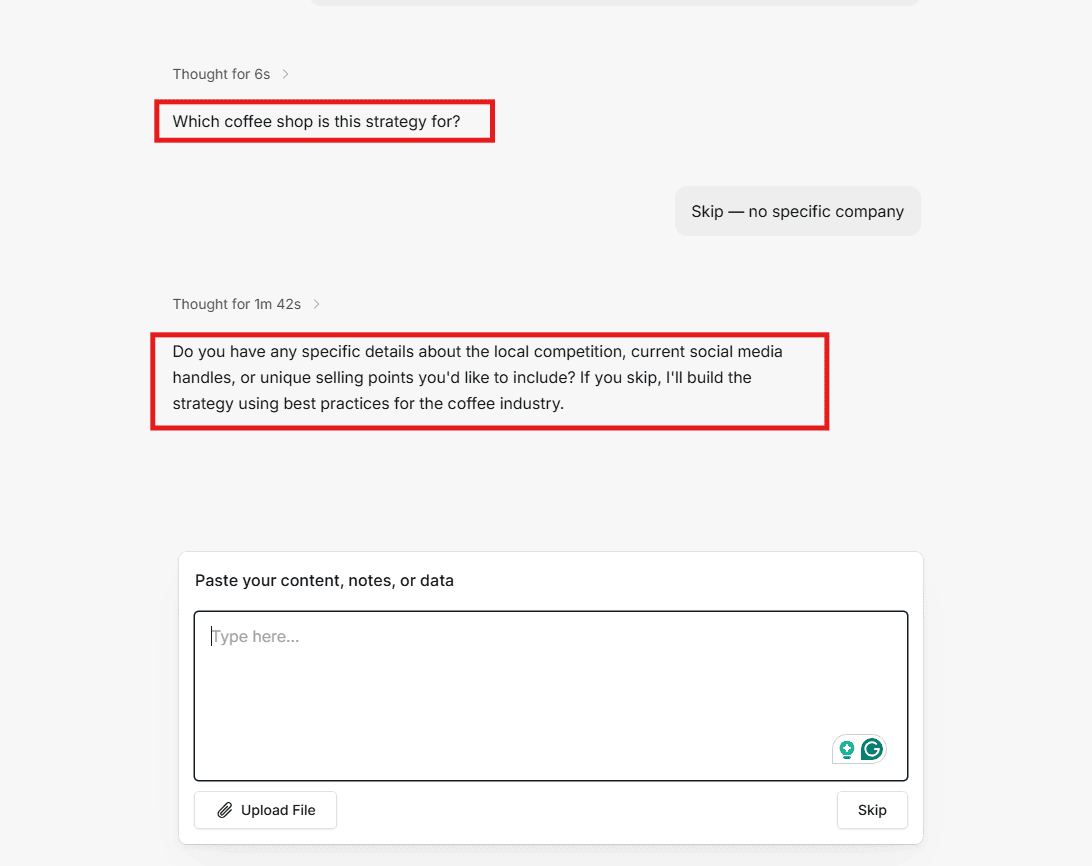
Before generating the slides, the AI will ask you a few interactive questions to gather additional context (e.g., about your competitors or your website URL).
- Type your answers into the chat box, or simply click "Skip" to let the AI build the deck using industry best practices.
Step 5: Review and Edit
The AI generates your deck in under a minute. First, review the slides to ensure the narrative flows, then start editing.
While the "Anti-Fragile" system prevents you from freely dragging elements across the canvas, you still have great control within the locked grids:
- Manual tweaks: Highlight any text to adjust its color and size, or use the slide menu to swap basic lists for diagrams or tables.
- AI assistance: Click "Insert" or "Edit with AI" to rewrite text and restructure layouts. (Note: Templates have a strict capacity limit. If a slide gets too full, the system blocks new additions!)
- Global changes: Click the "Theme" button to instantly apply a new color palette across the entire deck.
💡 Transparency Note: The presentation generated from our prompt is 100% unedited. As you will see, the prompt box is fantastic for quick brainstorming and building a structural starting point. However, if you already have heavy research, specific data, or long text, we recommend using the "Document Upload" feature instead to guarantee the AI includes all your specific facts!
We Put Presentations.ai to the Test: Real-World Scenarios
To see how well this "Anti-Fragile" architecture performs, we ran three specific agency stress tests.
💡 Transparency Note: All of these tests were conducted using a free account with the "Standard" AI model. While paid tiers offer upgraded AI models, we wanted to see what the baseline engine could do. As we noted in our recent 10 Best AI Presentation Makers report, other free tools (like Gamma or Canva) deliver vastly superior visual results without requiring a premium subscription.
Jump straight to our test results:
- Test 1: The Prompt-to-Slide Generation (EcoStream)
- Test 2: The Presentations.ai PDF to PPT Review (Document Upload)
- Test 3: Import PPT (Enhancing an Existing Deck)
Test 1: The Prompt-to-Slide Generation (EcoStream)
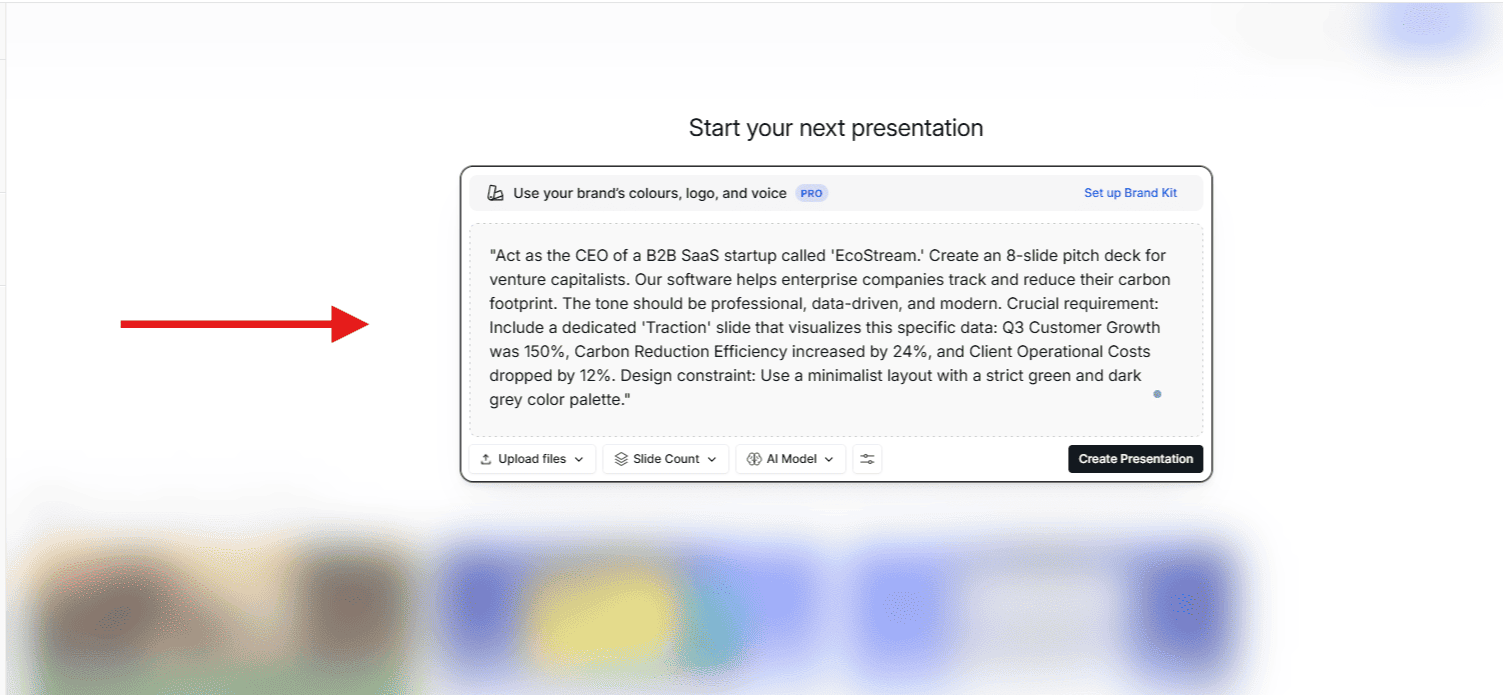
For our first test, we evaluated the raw power of the AI engine. We didn't upload any supporting documents; we only fed it our standardized 24Slides benchmark prompt to see how well it could follow strict instructions:
"Act as the CEO of a B2B SaaS startup called 'EcoStream.' Create an 8-slide pitch deck... Crucial requirement: Include a dedicated 'Traction' slide that visualizes this specific data: Q3 Customer Growth was 150%, Carbon Reduction Efficiency increased by 24%, and Client Operational Costs dropped by 12%. Design constraint: Use a minimalist layout with a strict green and dark grey color palette."
Here is what we found during the review:
- The Good (Data Accuracy): The AI's reading comprehension was solid. It successfully extracted our 150%, 24%, and 12% metrics and placed them neatly on a single "Traction" slide. The initial text generation was clean and logical.
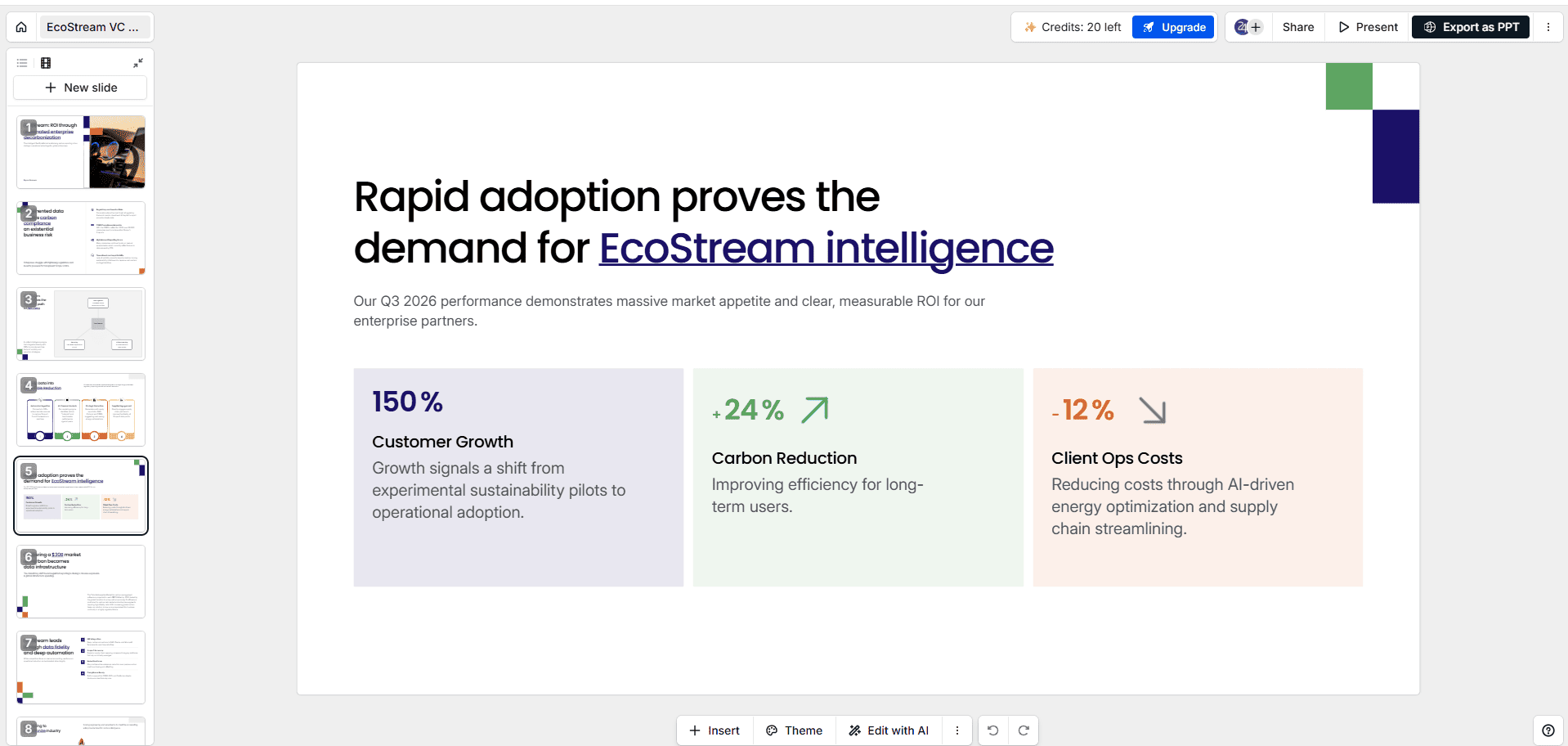
- The Bad (The Design Bottleneck): It completely ignored our "dark grey" command. Because Presentations.ai relies on pre-existing templates rather than generating custom code, it forces you to squeeze your data into a limited selection of preset color themes.
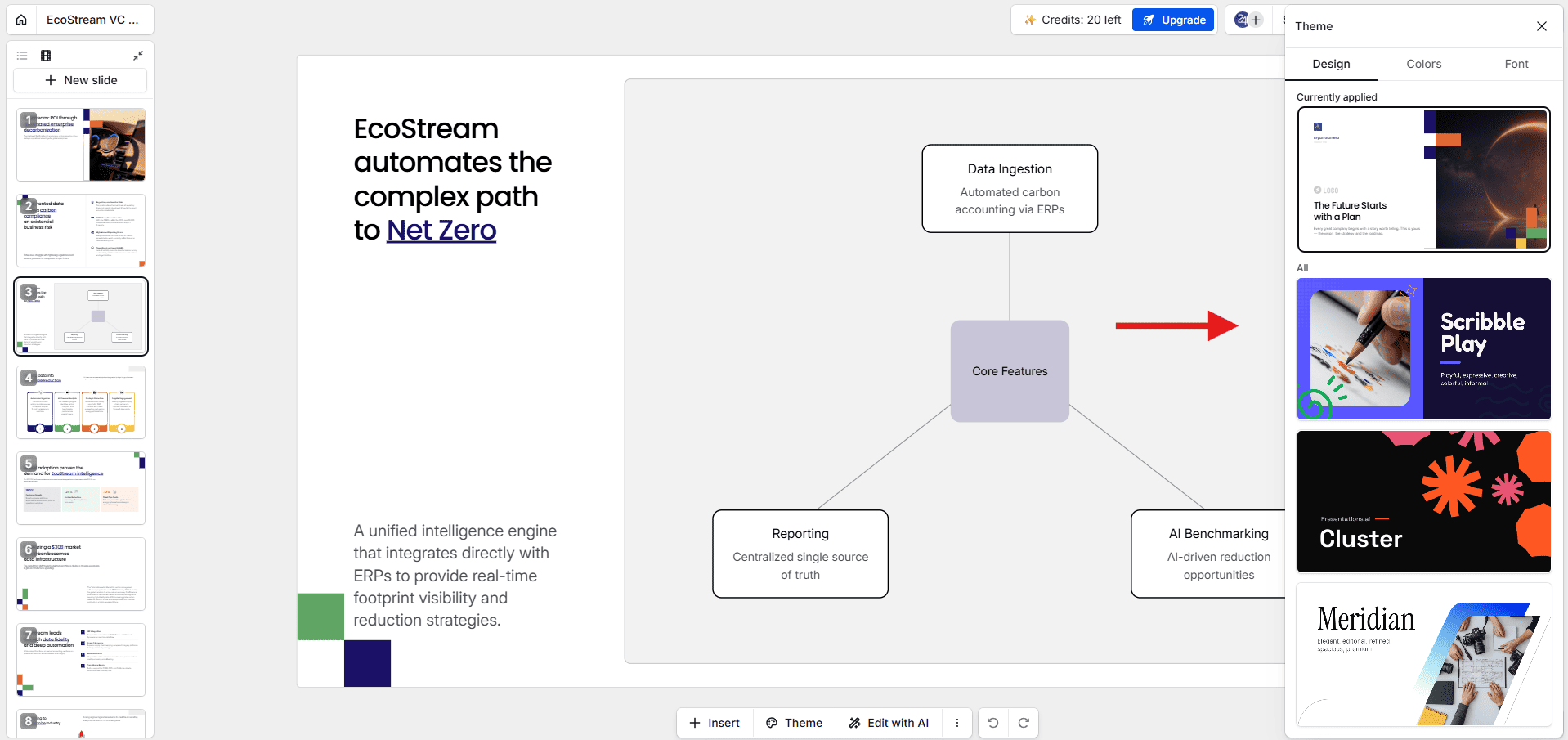
- The Ugly (Repetitive and Restrictive): The "Anti-Fragile" system severely limits your formatting options. For example, some diagram layouts had a hard limit of 4 points. If we needed a 5-point diagram, the system simply wouldn't allow it. Furthermore, the layouts quickly felt repetitive; because there are limited templates, many of our slides ended up looking structurally identical to decks we had generated previously.
The Designer's Verdict:
"While the layouts are clean, they often suffer from poor space optimization. As you can see in the image above, we noticed several awkward page jumps and strange blank spaces on the slides.
The 'Anti-Fragile' system guarantees you won't make a messy slide, but it acts as a creative straitjacket. For anyone who builds presentations regularly, the lack of custom formatting will quickly feel repetitive and uninspiring."
— Leonardo Acaro, Marketing Designer at 24Slides.
Test 2: The Presentations.ai PDF to PPT Review (Document Upload)
For our second scenario, we wanted to test how the platform handles heavy, complex documents. We frequently get asked if AI can turn massive reports into boardroom-ready slides, which is why a presentations.ai PDF to PPT review is so critical for enterprise teams.
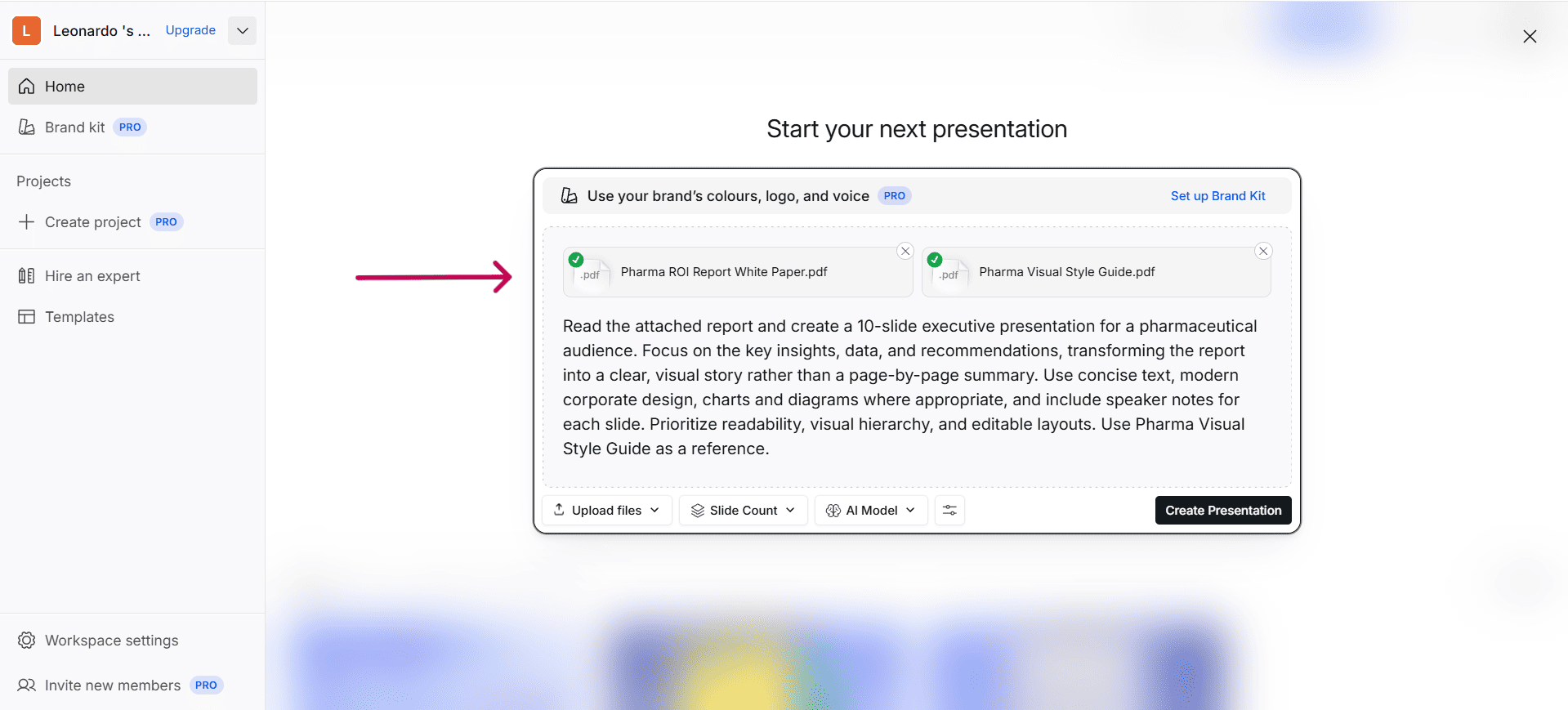
We uploaded our 18-page Pharma ROI Whitepaper (a dense, data-heavy lead magnet we use for our clients). To test the limits of the AI, we also attached a second PDF: our specific Pharma Visual Style Guide. We explicitly prompted the AI to extract the key insights and apply our exact visual branding.
Here is what we found:
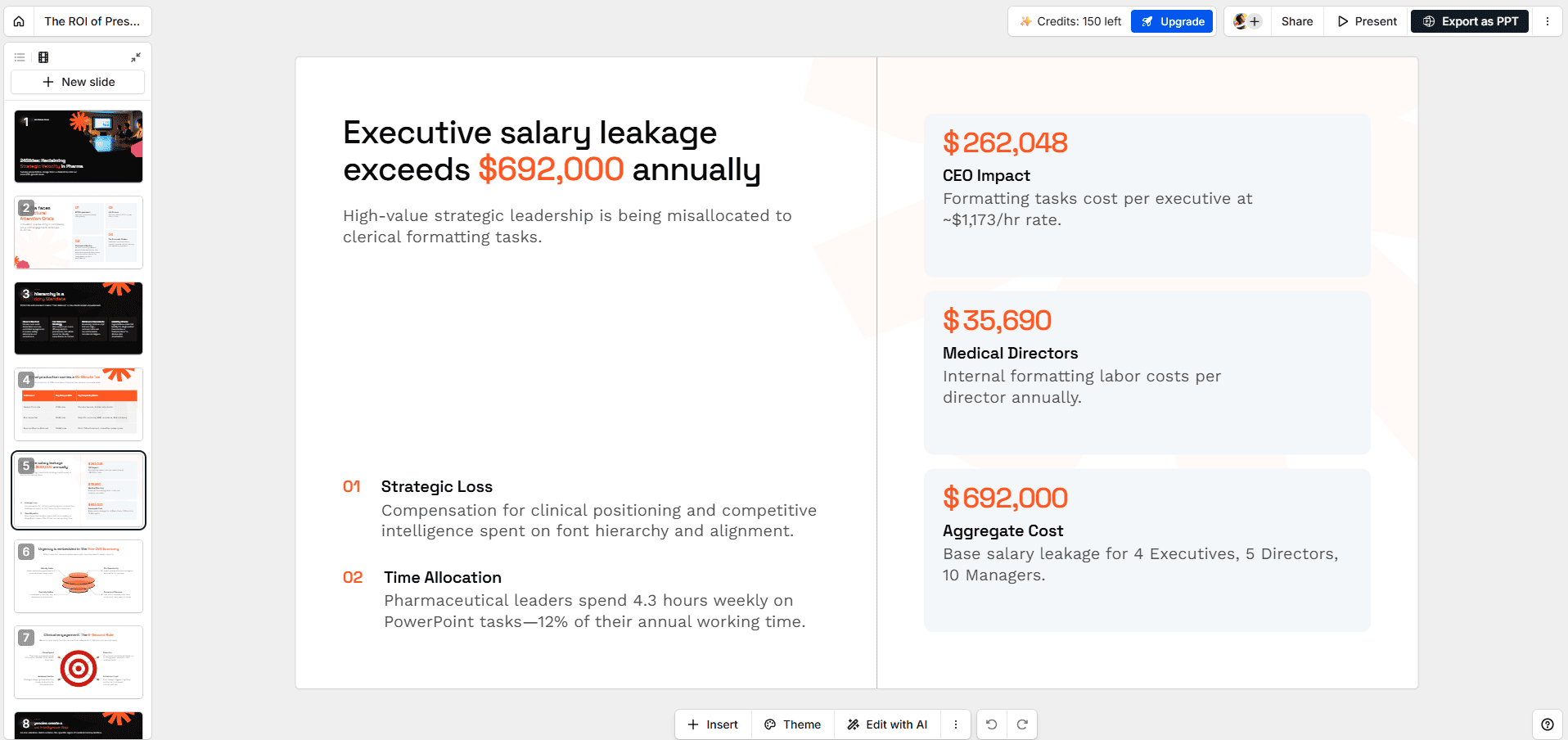
- The Good (Data Extraction): The AI’s reading comprehension is highly effective. It successfully processed the 18-page document, found the most important data points (such as the $692,000 salary leakage and the 4.3 hours spent on formatting), and summarized them cleanly onto the slides without hallucinating.
- The Bad (The Visual Straitjacket): Despite explicitly providing a PDF style guide and asking the AI to follow it, the platform completely ignored our branding instructions. Because Presentations.ai relies on a limited pool of rigid, pre-built templates rather than true generative design, it simply forced our pharma data into a generic, pre-set theme.
- The Ugly (Repetitive Outputs): Because the platform only has a handful of templates, we quickly realized that if a company uses this tool frequently, all of their presentations will look structurally identical. The layouts are safe, but highly repetitive.
The Designer's Verdict:
"Presentations.ai is an excellent summarization engine, but a very weak design partner. It excels at extracting data from dense PDFs and organizing that text into readable blocks. However, its 'Anti-Fragile' system permanently traps your content inside rigid, generic templates.
If you need to convert a PDF into a bespoke presentation that actually reflects your unique corporate identity, the design limitations of this tool will ultimately hold you back."
— Gabriel Morales, Marketing Designer at 24Slides.
Test 3: Import PPT (Enhancing an Existing Deck)
For our final scenario, we tested the "Import PPT" feature. We wanted to see if Presentations.ai acts as a true design assistant that can take an ugly, basic presentation and transform it into a premium corporate asset.
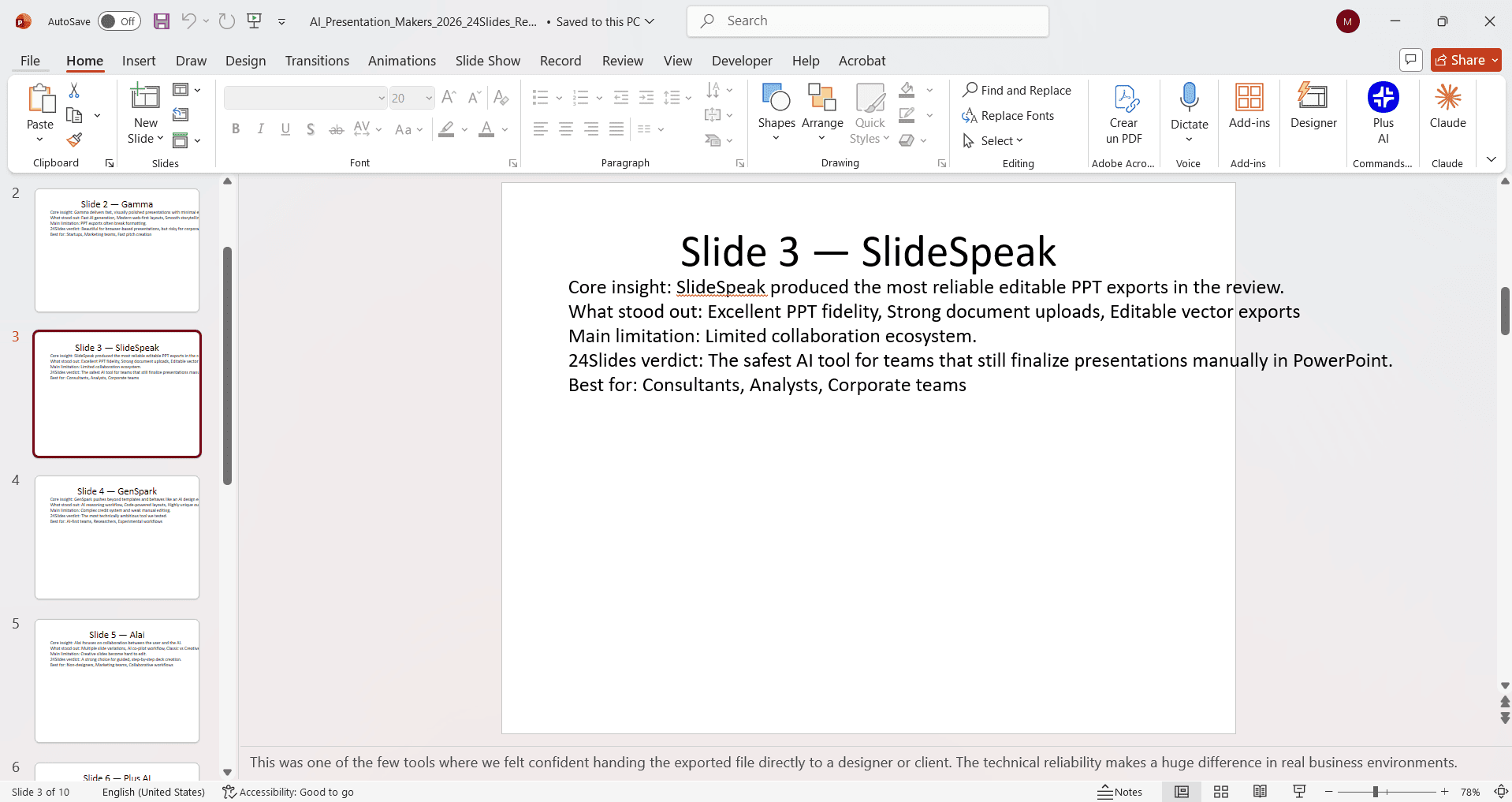
We used ChatGPT to generate a completely unformatted, 10-slide plain-white .pptx file containing our research on the 10 Best AI Presentation Makers. We uploaded this raw file into Presentations.ai along with a highly specific prompt:
"Redesign the attached presentation into a modern, executive-level deck... improving the layout, typography, spacing, and visual hierarchy. Add clean image placeholders... Use a minimalist, corporate style with plenty of whitespace."
Here is what we found:
- The Good (Content Extraction): The platform successfully read the .pptx file. It accurately pulled all of our slide titles, bullet points, and even preserved the hidden speaker notes we generated in ChatGPT.
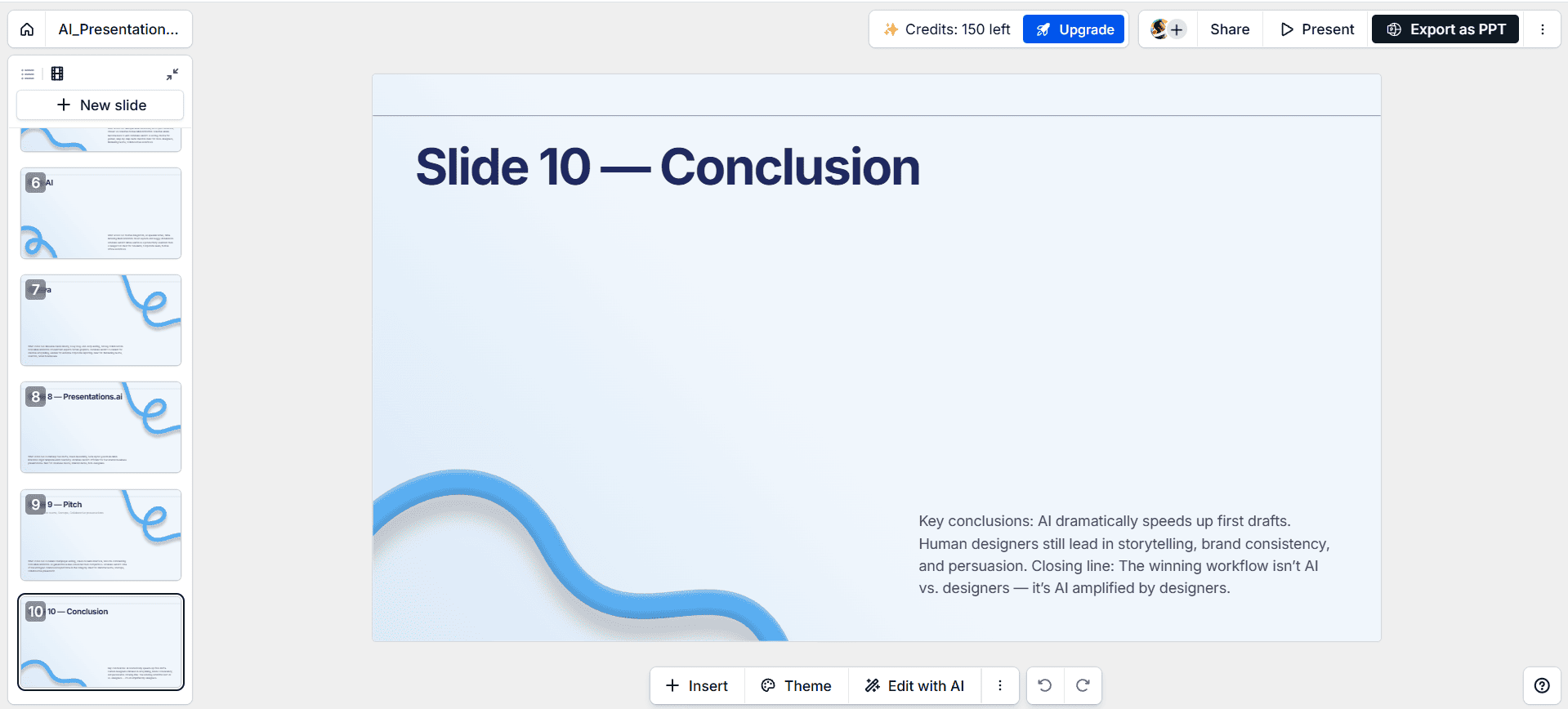
- The Bad (No Actual "Redesign"): The AI completely ignored our detailed prompt requesting a "minimalist, corporate style with plenty of whitespace." Because it is a strict template-injector, it cannot understand spatial design commands. It didn't dynamically design anything. It simply copied the text from our PowerPoint and pasted it directly into one of its pre-existing, restrictive templates.
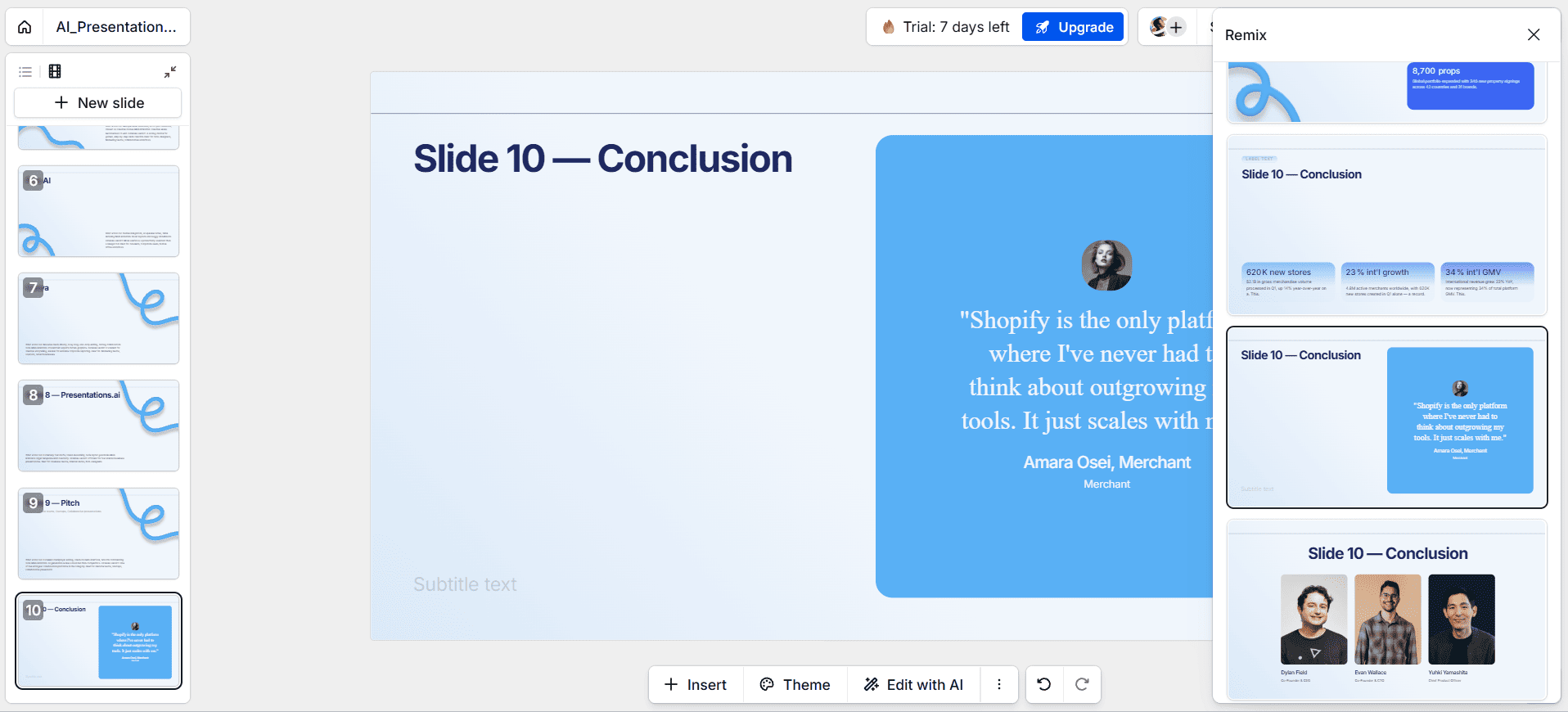
- The Ugly (The "Remix" Data Bug): Because the initial layout was so basic, we attempted to use the "Edit with AI" and "Remix" buttons to force the software to generate a better visual hierarchy. This triggered a severe software glitch: the AI completely overwrote our specific slide information, replacing our custom data with generic, default template text.
The Designer's Verdict:
"The 'Import PPT' feature is essentially just a template-applier. If you have a chaotic, unformatted presentation, it will neatly organize your text into clean boxes. However, because it ignores custom design prompts and forces your content into its 'Anti-Fragile' grid, it lacks the contextual intelligence to actually elevate the narrative.
Furthermore, the data-loss bug we experienced when using the AI editor proves that this tool requires intense manual proofreading before you can ever show it to a client."
— Leonardo Acaro, Marketing Designer at 24Slides.
How Much Does Presentations.ai Actually Cost? (2026)
One of the most frequently asked questions we see is about pricing. Is the tool actually free? Technically, yes—but functionally, no.
The Starter plan gives you 100 free credits to explore the platform. However, as we saw in our testing above, the free plan strictly blocks you from downloading or exporting your presentation in any format. If you actually want to use your presentation offline, share it as a PowerPoint file, or use custom brand colors, you are forced to upgrade.
Presentations.ai Pricing Breakdown: Plans and Export Limits
| PLAN | PRICE (BILLED ANNUALLY) | CORE LIMITS & EXPORTS | BRAND CUSTOMIZATION |
|---|---|---|---|
| Starter |
$0
Free forever
|
Free AI credits with up to 10 slides per deck. Zero downloads or exports permitted. | Basic templates only. No custom brand colors or custom fonts allowed. |
| Pro |
$20 / mo
Billed annually ($240/yr)
|
5,000 AI credits. PPTX and PDF exports unlocked. Collaboration for up to 10 guests. | Custom brand colors and fonts unlocked. Includes 1 brand voice and 10MB of custom asset storage. |
| Gold |
$100 / mo
Billed annually ($1,200/yr)
|
50,000 AI credits with faster "Frontier" models and unlimited guest collaboration. | Fully custom templates, unlimited brand voices, and unlimited custom brand asset storage. |
💡 Agency Insight & Pro-Tip: We noticed two interesting discrepancies during our testing. First, while their official pricing page states free accounts receive 100 credits, our test account actually received 200 free credits upon sign-up. Second, Presentations.ai uses regional pricing (Purchasing Power Parity). Depending on what country you are logging in from, you may see significantly discounted subscription rates inside the app compared to the standard US pricing listed above!
Presentations.ai reviews: The Pros and Cons
After spending hours inside the platform and running our agency stress tests, here is our definitive Designer's Verdict.
(Note: Our testing was conducted on the free plan, which restricts generation to their "Standard" AI model rather than the latest, advanced versions. However, it is important to clarify that the core design mechanics—specifically the reliance on rigid templates and restricted editing—do not change on the paid tiers).
The Pros: Where it performs well
- Risk-Free Testing: The platform gives you 100 free credits upon sign-up to explore the interface and generate initial drafts without ever needing to enter a credit card.
- Speed and Usability: The AI setup phase is highly interactive. It asks smart clarifying questions and generates an accurate baseline outline in seconds.
- "Anti-Fragile" Guardrails (A Double-Edged Sword): For non-designers, this rigid system is a massive benefit. Because elements are strictly grouped together, you literally cannot make an ugly alignment mistake.
- The "Edit with AI" Menu: Instead of struggling with manual text formatting, the platform provides a highly intuitive built-in AI editor. With a few clicks, you can easily command the system to improve your writing, shorten paragraphs, or adjust the tone, ensuring your messaging is polished without ever risking layout errors. (Note: Keep an eye on your balance, as each of these quick actions costs 5 credits).
The Cons: Where it falls short
- The "Injector" Limitation: As we detailed in our AI vs. Professional Presentation Designer guide, Presentations.ai uses the "Injector" (template filler) method. Because it relies on a limited library of pre-made templates rather than generating custom designs, your presentations will inevitably become repetitive and off-brand over time.
- Ignored Visual References: During our testing, even when we provided specific hex codes and uploaded a visual style guide PDF, the AI ignored our references and forced our data into its own pre-set color themes.
- A Creative Straitjacket: This is the dark side of the "Anti-Fragile" system. To protect the layout, the software heavily restricts manual editing. You cannot simply draw a new text box or move an image freely on the canvas.
- No Dedicated AI Chatbot: The AI assistant is really only present during the initial prompt generation phase. Once you are in the editor, there is no conversational AI chat panel to help you make granular, real-time edits (unlike the seamless chat experience we highlighted in our Gamma App Review.
- The Export Paywall: The biggest drawback for testing. The free tier strictly blocks you from downloading your presentation. If you want to export to PowerPoint or PDF to fix the rigid layouts, you must pay $240/year.
Who Should Use Presentations.ai? (And Who Shouldn't?)
Based on our agency testing, here is exactly who will benefit from this platform, and who will hit a wall.
Who It's For
- Non-Designers & Students: If you have zero design experience, the "Anti-Fragile" templates act as training wheels, ensuring your presentation looks clean and cohesive.
- Busy Managers: If you need to generate a fast, structured presentation for an internal meeting and don't care about custom branding, the prompt-to-deck engine is a massive time saver.
- Educators & Speakers: Perfect for generating clean, highly readable visual aids for lectures or webinars without spending hours formatting slides.
Who It's Not For
- Enterprise Corporate Teams: If your deck requires strict adherence to a Corporate Visual Identity (CVI), this tool is too restrictive. It forces your content into its own templates rather than adapting to your brand.
- Professional Designers: The inability to ungroup elements, overlap images, or manipulate white space makes it impossible to create bespoke, high-impact designs.
- Users needing a free .pptx file: If you are looking for a completely free AI presentation maker to download your work, look elsewhere.
What Do G2 and Trustpilot Say About Presentations.ai?
To ensure our review isn't just an isolated agency opinion, we analyzed community sentiment across major software review platforms like G2 and Trustpilot. A very clear and highly polarizing consensus emerges.
The Positive Consensus:
On platforms like G2 (where the tool holds a 4.4/5 rating), everyday users consistently praise the platform's ease of use for absolute beginners. Non-designers, students, and small business owners love how quickly the AI can take a raw idea and turn it into a visually cohesive, ready-to-share web link without requiring any technical design skills.
💡 Transparency Note on G2 Reviews: It is important to note that a significant portion of the positive G2 reviews are tagged as "Incentivized" or "G2 Invite." The company actively runs campaigns to prompt users to leave reviews right after generating a presentation. While the praise for its speed is genuine, this tactic often skews the aggregate score higher than organic review sites.
The Negative Consensus:
When you look at organic, unprompted reviews on platforms like Trustpilot (where the tool holds a brutal 2.1/5 rating). Power-users echo our design team's exact frustrations, plus a few major billing complaints. The negative reviews follow a very specific pattern:
- The "Credit Limit" Confusion: Users frequently complain that upgrading to the "Pro" plan does not mean "unlimited AI." While you can still use the basic app, heavy AI features (like Remixing layouts or generating multiple options) drain a finite pool of 5,000 credits. Many users feel deceived when they realize their paid subscription still has strict AI limits.
- Export Failures: The most common technical complaint is the export process. Users report that exporting to PowerPoint often results in flattened images, shifted layouts, or severe processing delays (with some reporting it took hours for the .pptx file to arrive in their inbox).
- Creative Restrictions: Professionals mirror our findings, noting that the "Anti-Fragile" templates are simply too restrictive and repetitive for high-stakes corporate use.
- Customer Support: There is a massive pattern of users expressing frustration over strict no-refund policies, aggressive auto-renewals, and non-responsive customer service when encountering software bugs.
Best Presentations.ai Alternatives for 2026
If the "Anti-Fragile" templates feel too restrictive, or if you refuse to pay $240 a year just to export a PowerPoint file, there are better options on the market. Here is how the top competitors stack up:
| AI TOOL | THE ADVANTAGE | WHY WE CHOSE IT |
|---|---|---|
| Gamma | Best Credit System | Unlike Presentations.ai, Gamma's free tier allows you to actually export your decks (with a watermark). It builds incredibly fast, fluid, web-based layouts. |
| Plus AI | Native Integration | If you want AI assistance without learning a new platform, Plus AI lives natively as an add-on directly inside Google Slides and PowerPoint, preventing export bugs. |
| Canva | Free-Form Canvas | If you hate rigid templates, Canva gives you an infinite canvas to drag and drop elements exactly where you want them, completely for free. |
For a deep dive into these tools, read our comprehensive guide: The 10 Best AI Presentation Makers for 2026.
Beyond Automated Templates: The 24Slides Redesign Test
Let's be completely honest: if you are a student or a manager who just needs a clean, basic deck for an internal team sync tomorrow morning, Presentations.ai is a fantastic tool. You do not need to hire a design agency for that.
But when you are pitching high-stakes investors or delivering an executive board update, "good enough" becomes a liability.
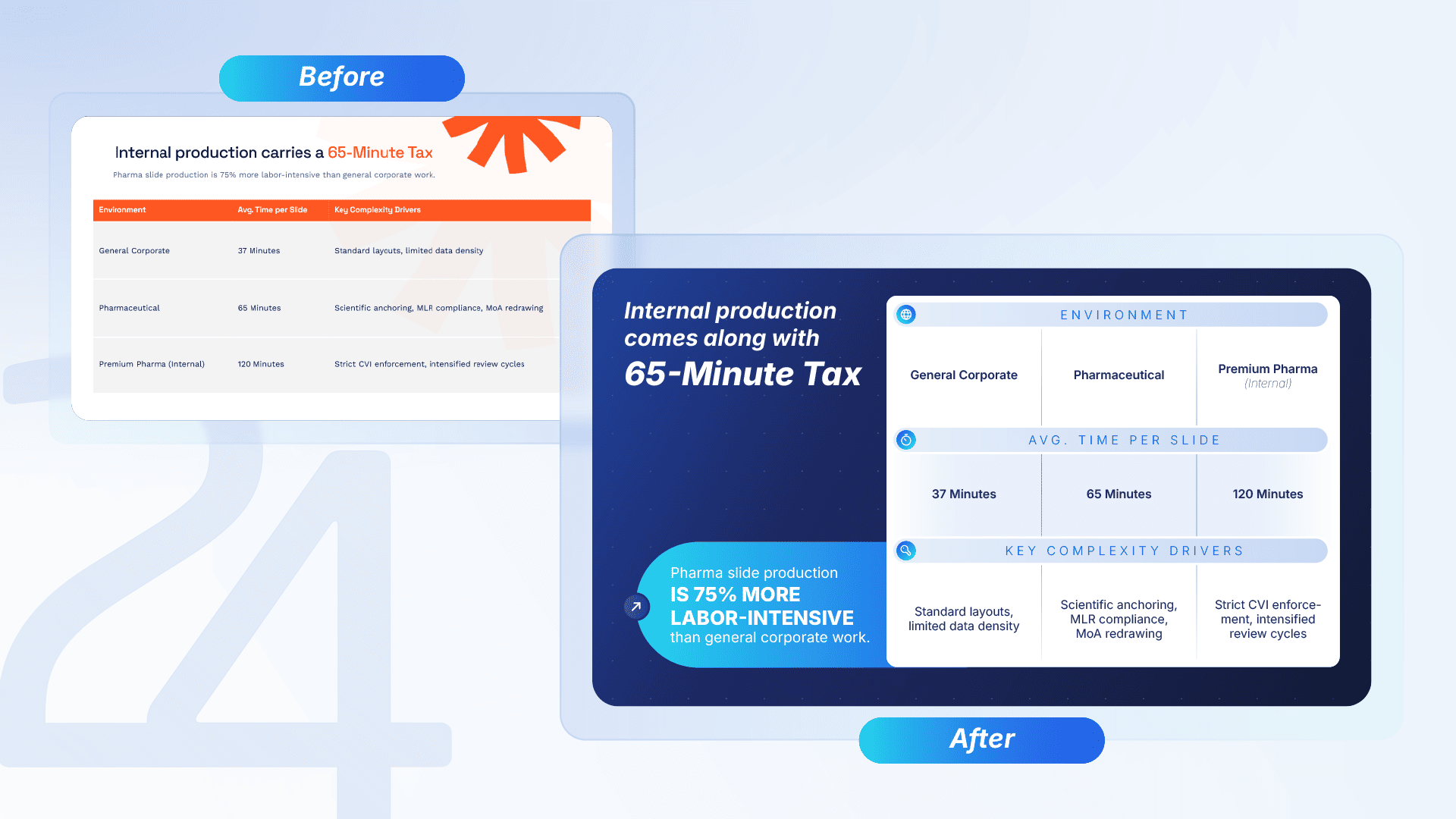
During our stress tests above, we fed Presentations.ai a massive Pharma document and an exact visual style guide. We hoped the AI would adapt to our branding. Instead, it ignored our style guide entirely and forced the data into a generic, pre-set template.
To show you what true corporate design looks like, we handed that raw AI output over to Gabriel Morales, our marketing designer. He completely dismantled the rigid AI blocks and applied the exact Corporate Visual Identity (CVI) that the AI had ignored.
Here is what happens when human expertise takes over:
The Unified Workflow: Meet Medly AI
Enterprise teams should not have to choose between rigid software containers and fragmented agency workflows.
Developed by 24Slides, Medly is a proprietary AI deck builder that pairs algorithmic speed with dedicated designer polish on a single platform.
Our specialists configure your brand environment upfront. The AI produces structured, on-brand drafts in minutes, while 24Slides designers remain on standby to refine complex slides within hours.
Backed by 24Slides' track record of over 2 million slides delivered, Certified B Corp governance, and SOC 2 Type II auditing, the platform delivers presentation quality your organization can trust.
Move beyond rigid templates and manual cleanup and request early access to Medly.
Frequently Asked Questions (FAQ)
Is Presentations.ai free?
Technically, yes—you can create a free "Starter" account that provides 100 credits to test the AI generation. However, the free plan strictly prevents you from downloading or sharing your work offline. If you want to actually use the presentation, you must upgrade to a paid plan.
How much does Presentations.ai cost?
If you are looking for presentations.ai pricing official rates, the platform requires a paid subscription to export files. The "Pro" plan starts at $20/month (billed annually at $240). For larger enterprise teams needing unlimited brand voices and custom templates, the "Gold" tier costs $100/month (billed annually at $1,200).
Can Presentations.ai convert PDF to PPT?
Yes, you can upload PDFs and Word documents, and the AI will automatically extract the text into its slide templates. However, if you are looking for a presentations.ai PDF to PPT review, you must be aware of the paywall: while the AI can read the PDF for free, you must have a paid Pro subscription to export the new presentation as a .pptx file.
Does Presentations.ai ensure brand consistency?
It offers a paid feature called "Brand Sync" that automatically applies your logo and primary color palette across its templates. However, because it relies on "Anti-Fragile" locked grids, deep granular customization (like specific typography scaling, exact margins, or overlapping assets) is heavily restricted compared to traditional design software.
Can Presentations.ai handle real-time collaboration effectively?
Yes, it is often compared to "Google Docs for presentations." It allows multiple users to edit the same deck simultaneously, leave comments, and track viewer analytics. However, these multiplayer collaboration features are strictly locked behind the paid Pro and Gold tiers; free users cannot collaborate.
Want to dive deeper into the world of AI presentations? Check out our detailed reviews and guides.