Canva Review 2026: Is Canva Worth It for Presentations?

If you're looking for an honest Canva review, Canva is one of the best design platforms available today for creating presentations, social media graphics, videos, documents, and more of your marketing collateral.
Its biggest strength is accessibility. Whether you're a student, marketer, educator, nonprofit professional, or business owner, Canva makes professional-looking design possible without requiring advanced graphic design skills.
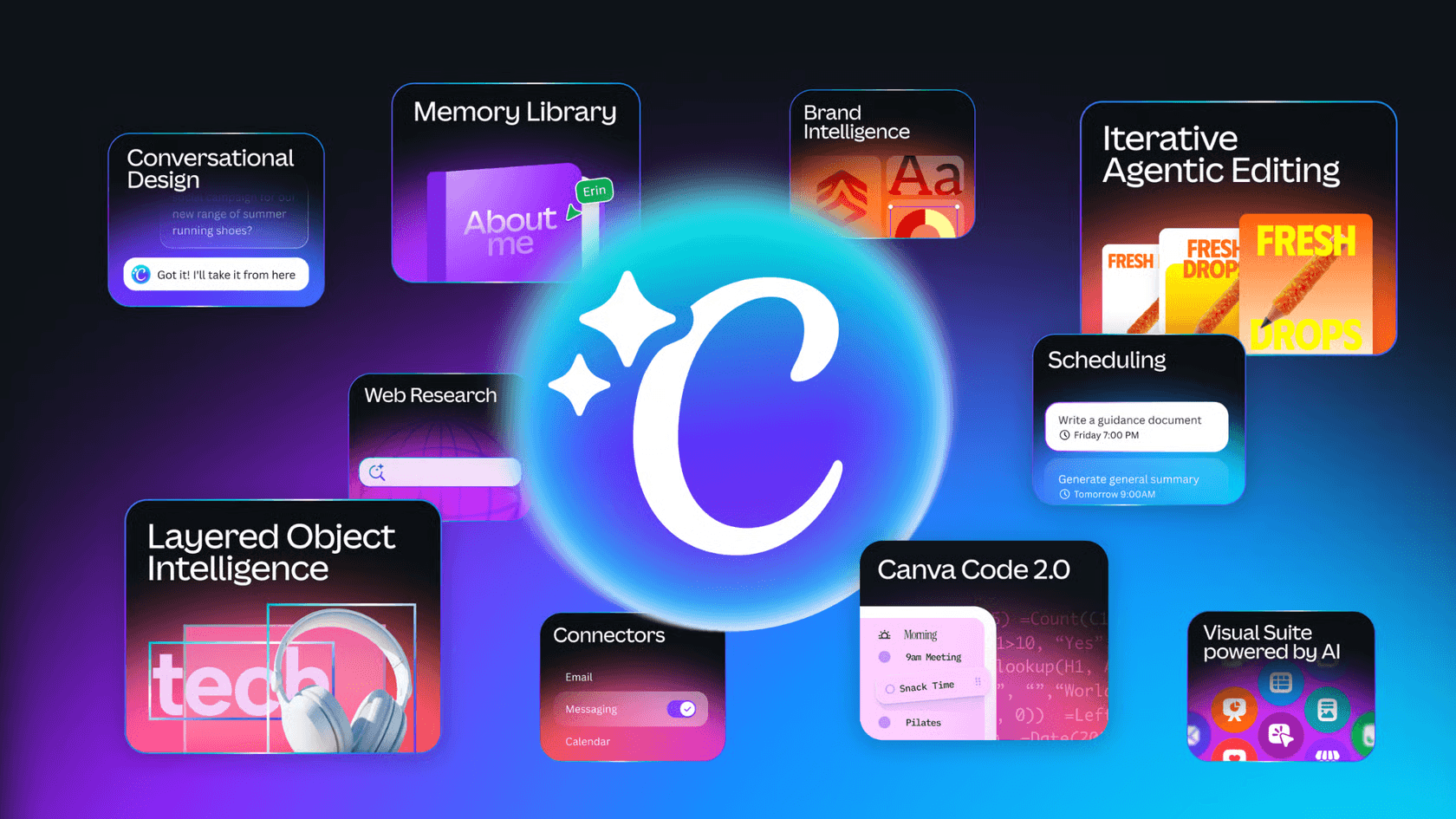
The launch of Canva AI 2.0 has taken the platform even further. Instead of simply editing templates, users can now generate presentations, images, documents, videos, websites, and spreadsheets using conversational AI.
However, Canva is not the perfect solution for everyone.
After testing the Canva presentation maker, its AI tools, collaboration features, pricing, and export capabilities, our presentation designers found that Canva is excellent for creating presentations quickly. That said, Canva still has limitations when it comes to advanced branding and presentation storytelling.
In this Canva review, we'll explain where Canva excels, where it falls short, and who should, and shouldn't, use it.
TL;DR: Our Verdict
⭐ Overall Verdict: Canva is one of the best AI presentation tools for beginners and business users. It combines an intuitive editor, powerful AI features, and an extensive template library, making it easy to create professional-looking presentations in minutes. While its AI dramatically speeds up the design process, you'll still need to refine layouts, branding, and visual hierarchy for presentation-ready results.
👍 Best for: Students, marketers, educators, startups, nonprofits, small businesses, and anyone looking to create visually appealing presentations quickly without advanced design skills.
👎 Not ideal for: Professional designers, enterprise teams with strict brand guidelines, or users who require highly customized layouts, advanced typography, and pixel-perfect presentation design.
📊 Average score: 8.6/10, based on our evaluation of AI Capabilities, Ease of Use, Presentation Design, and Collaboration & Compatibility.
What is Canva and Who is Its Founder?
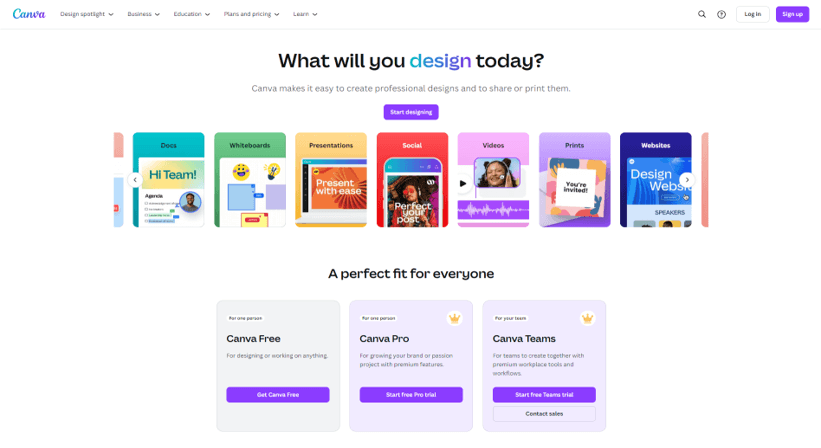
Canva is an online design and visual communication platform that offers a free version and several paid memberships tailored to your company’s size.
Currently, Canva’s toolset includes Canva AI 2.0, an AI-powered hub that has transformed the landscape of online design. This experience is complemented by thousands of templates and audiovisual resources that optimize everyone’s creative process.
Magic Design, Magic Write, and Magic Switch are some of Canva's AI-powered tools that help users create presentations, generate content, and repurpose designs more efficiently.
This design platform was founded in 2013 by Australian entrepreneur Melanie Perkins, together with Cliff Obrecht and Cameron Adams. Their goal was to simplify graphic design by creating an intuitive platform that anyone could use, making professional design accessible to businesses, educators, marketers, and everyday users.
How We Evaluated Canva for Presentations
To provide an objective review, our presentation experts tested Canva using real-world business presentation scenarios.
Rather than evaluating isolated features, we focused on the complete presentation creation workflow, assessing how Canva performs from AI-powered slide generation to content editing, design customization, collaboration, and PowerPoint compatibility.
We assessed Canva across four key criteria:
| Category | Our Approach |
|---|---|
| AI Capabilities | We evaluated how well Canva AI supports presentation creation, including Magic Design, Magic Write, the Canva AI Assistant, Image to Video, and other AI-powered tools. Our assessment focused on prompt accuracy, content generation, editing flexibility, and the overall usefulness of AI throughout the presentation workflow. |
| Ease of Use | We assessed how intuitive Canva is for first-time and regular users by reviewing its interface, learning curve, navigation, and the speed at which users can generate, edit, and customize presentations. |
| Presentation Design | We reviewed the quality of Canva's presentation templates, layout generation, branding tools, visual consistency, customization options, animations, and the AI's ability to make creative design decisions while maintaining visual consistency. |
| Collaboration & Compatibility | We evaluated Canva's collaboration features, including real-time editing, comments, third-party integrations, and its compatibility with PowerPoint through file import and export. |
Key Features of Canva for Presentation Design
Canva is a very comprehensive online design software, and here we summarize its most outstanding features for presentation design.
Magic Design
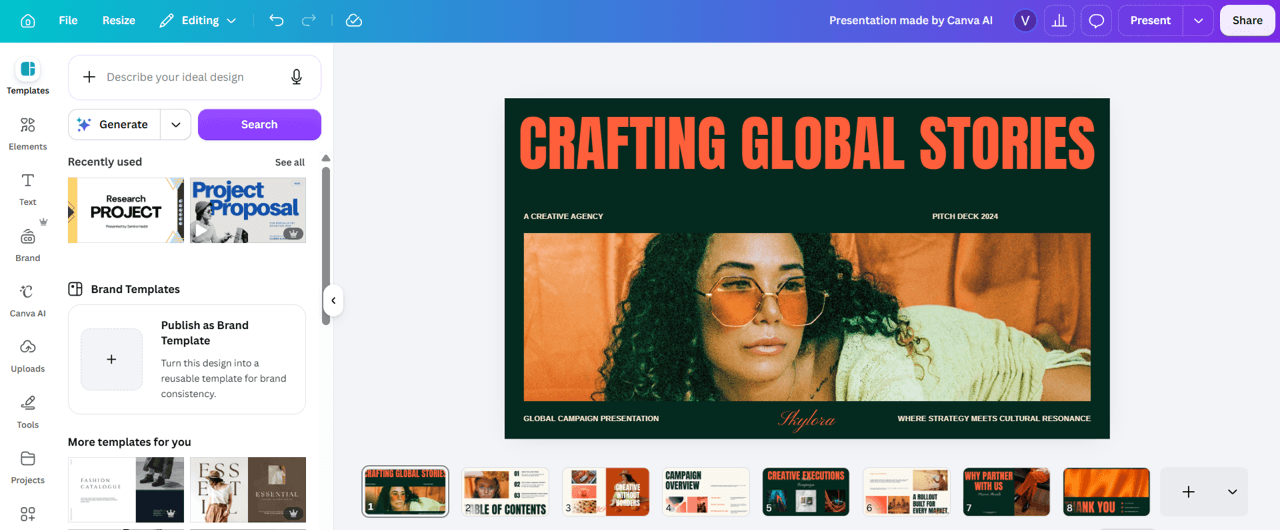
With Magic Design, you can create presentations by simply entering a detailed prompt. In just a few seconds, Canva generates a fully editable presentation with approximately 8 to 20 slides.
It builds the structure, organizes the narrative flow, selects the color palettes, chooses typography, and writes the initial draft of your text. It ensures the slides look cohesive and professional from start to finish.
Canva AI Assistant
Canva AI is a conversational assistant that helps users refine and edit your presentations after they're generated.
Using natural language prompts, you can rewrite text, adjust colors, replace images, update charts, and make design changes across your deck without manually editing each slide.
Magic Media
Magic Media focuses on specific details. It does not understand slide layouts or text formatting. Instead, it creates completely original images, graphics, and video clips based purely on your text descriptions.
To find this tool, go to the Apps panel on the left sidebar and search for "Magic Media". Once you use it, the icon will stay pinned to your side toolbar for quick access in the future.
Magic Write
Magic Write is another flagship feature of Canva AI. With just a few clicks, you can rewrite your presentation text, adjust its tone, improve its structure, or shorten it to make your message more concise.
This feature is easy to use. Simply select a text box, click More (the three-dot menu), and choose Magic Write to start editing your content with AI.
Image to Video
Image to Video is one of Canva's most impressive AI features, allowing users to transform static images into dynamic 5-second video clips with just a few clicks.
It is part of Canva's image editing suite, and you can find it through the Reimagine tool.
Canva Templates
One of Canva’s defining features is its extensive library of templates.
You will find templates for pitch decks, business proposals, marketing presentations, sales reports, educational content, portfolios, webinars, and more.
These templates provide a professional starting point and can be easily customized to match your brand and presentation goals.
Stock Library
Canva's extensive stock library includes millions of photos, illustrations, icons, videos, and other multimedia assets that can be added to presentations with a single click.
These built-in resources eliminate the need to source visuals from multiple platforms, helping users create engaging, professional-looking slides more efficiently.
While Canva Free offers a generous selection, Pro users gain access to a significantly larger premium content library.
Brand Kits
This Canva tool includes brand assets such as your logos, color palette, icons, photos, and even your brand’s tone of voice and pre-design templates.
This feature allows you to make quick changes to your deck with a single click.
Integrated Apps
Canva integrates with hundreds of third-party apps to streamline your workflow. You can connect tools like Google Drive, Gmail, Slack, HubSpot, Dropbox, and Microsoft OneDrive to access files and collaborate more efficiently.
It also offers AI-powered integrations such as DALL·E for image generation and HeyGen for creating realistic AI avatars and videos.
Real-Time Collaboration
Canva makes teamwork easy by allowing multiple users to edit, comment on, and review presentations simultaneously.
Also, your changes are going to be saved automatically, making it simple for teams to collaborate on the same presentation from anywhere.
Presenter View and Remote Control
Canva's Presenter View lets you present with speaker notes, a presentation timer, and slide navigation that are only visible to you.
You can also use Remote Control to advance slides directly from your mobile device, allowing you to move freely while presenting without staying near your computer.
PowerPoint Compatibility
Canva supports both importing and exporting PowerPoint (.pptx) files, making it easy to continue working across platforms.
You can edit existing PowerPoint presentations in Canva or export your finished design as a PowerPoint file while preserving most layouts, images, and animations.
Pros and Cons of Canva for Presentations
Now, Canva seems like the perfect tool for content creation, but there are also a few areas for improvement.
Let’s review Canva’s pros and cons:
Pros of Canva
- User-friendly tool: Canva is highly intuitive, and most users can learn the platform after just a few attempts. Its AI features are equally easy to use, requiring only a prompt or a few clicks to generate and edit presentations, images, or written content.
- Many pre-designed templates: If you’re a non-designer, the templates will be your lifesaver. The best part? They are full editable.
- Many features for different needs: In Canva you can create visuals from scratch, edit videos, and showcase flyers if your presentation needs them. This creative software lets you focus on learning just one design tool instead of several like before.
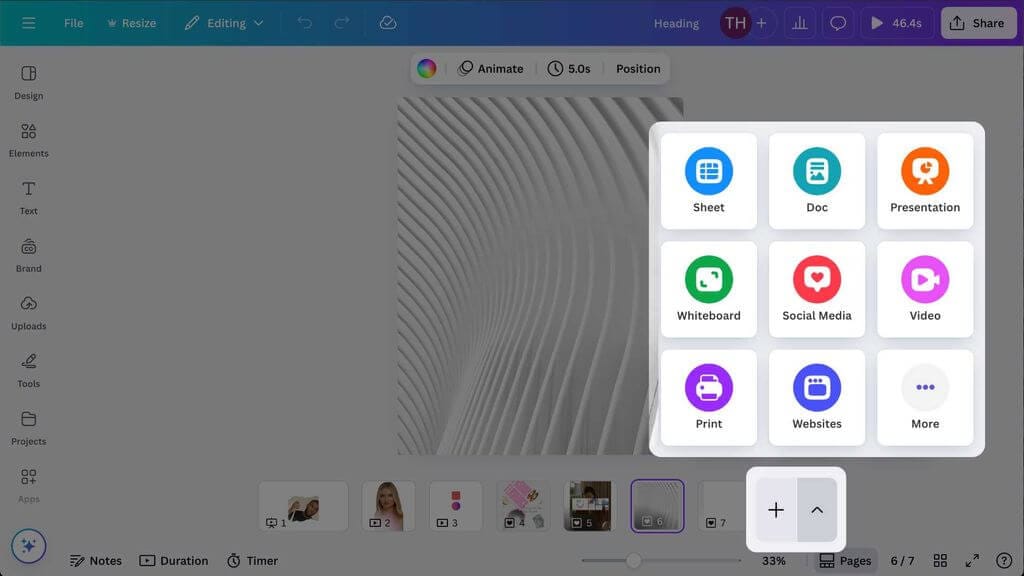
- Multi-design projects: This latest Canva update allows you to create pages of different sizes within the same Canva project. If you have an upcoming presentation and do not want to constantly switch tabs, this option is ideal for you.
- Auto-save feature: Like Google Slides, Canva automatically saves your progress in real time, so you won’t have any problems if your computer shuts down suddenly!
- Accessible from anywhere and anytime: You can edit your designs without a problem on your computer, iPad, or smartphone. The latest update allows you to edit your creation offline, so you don’t need to worry about internet connection anymore.
- Great for teamwork: In Canva, you can add comments, view the change history, and, best of all, edit your file synchronously with others without the program lagging.
- You can import files from different sources: You can import images in JPG, PNG, and SVG. Also, PowerPoint, Word, PDF, GIF, and MP4 files. In order to save some storage space, we recommend compressing your images with TinyPNG before uploading them to Canva.
Cons of Canva
- Canva Presentation Maker (Magic Design) has limitations: Although this AI-powered feature can generate a presentation in seconds, its output is limited because it primarily repurposes existing templates available on the platform.
- Issues with text formatting: Canva offers limited options for customizing text formatting when writing content in a single box. It also lacks features for creating text shapes, such as complex curves, which are available in other design software like Adobe InDesign.
- Issues with file imports: When importing a PPTX or PDF file, there may be design errors that don’t match the original file. For instance, Canva often fails to recognize layers or images inserted into shapes.
- The free version is limited: Canva offers only a limited amount of stock content. Paying for the membership not only unlocks all stock assets but also gives you more credits to explore its AI capabilities.
- Customer service response is slow: Users across various review platforms report that Canva’s customer service is really deficient. Additionally, finding a direct support channel isn’t easy.
Canva Pricing
Canva provides a range of plans designed for different types of users and organizations. The comparison below highlights each membership's pricing, key benefits, and AI allowance.
| Membership | Price | Best For | Key Benefits | AI Allowance |
|---|---|---|---|---|
| Canva Free (Basic) | Free | Individuals, students, and occasional users |
Drag-and-drop editor 6.3M+ templates & assets 1 Brand Kit (3 colors) 5 GB cloud storage |
Up to 200 Standard or 20 Premium AI uses/month. No Ultra AI access. |
| Canva Pro |
$18/month or $144/year |
Freelancers, creators, and professionals |
Canva AI 2.0 144.6M+ premium templates & assets 5 Brand Kits Social media scheduler 100 GB cloud storage |
Up to 2,000 Standard, 200 Premium, or 20 Ultra AI uses/month. |
| Canva Business |
$25/month or $250/year |
Marketing teams and small businesses |
Canva AI 2.0 Team collaboration & admin tools 144.6M+ premium templates & assets 100 Brand Kits 500 GB cloud storage |
Up to 4,000 Standard, 400 Premium, or 40 Ultra AI uses/month. |
| Canva Enterprise | Contact Sales | Large organizations |
Canva AI 2.0 Enterprise-grade security SSO & admin controls 1,000 Brand Kits Dedicated support |
Up to 4,000 Standard, 400 Premium, or 40 Ultra AI uses/month. |
| Canva for Education | Free | K–12 teachers, students, and qualifying schools |
Premium Canva features Classroom collaboration Education templates Teaching resources |
AI allowance included for eligible education accounts. |
| Canva for Campus | Contact Sales | Universities and higher education institutions |
Shared Brand Kits Campus-wide collaboration Enterprise administration Security & governance |
AI allowance included based on the institution's plan. |
| Canva for Nonprofits | Free (up to 50 users) | Registered nonprofits, charities, and social impact organizations |
Canva Pro features Team collaboration Brand management tools Marketing & fundraising templates |
Up to 2,000 Standard, 200 Premium, or 20 Ultra AI uses/month. |
Note: Canva uses a shared monthly AI allowance rather than individual credits. AI usage is shared across Standard, Premium, and Ultra AI tools, with the monthly allowance varying by membership tier.
The coolest part is that the company gives you all the benefits of Canva Pro if you are eligible for Canva for Education or Canva for Non-profits. Check the links to know all the requirements!
Canva Reviews: What People Say?
This graphic design software offers many features, which can lead to diverse opinions among users.
Here is a breakdown of the scores given to Canva from the most-used review platforms today:
- G2: 4.7/5 (7K reviews)
- GetApp: 4.7/5 (13K+ reviews)
- Capterra: 4.7/5 (13K+ reviews)
- Trustpilot: 3.9/5 (5K+ reviews)
The rating scale ranges from 1 to 5, with most averaging 4.7, except for Trustpilot, which averages 3.9. Canva’s poor customer service is the main reason for this low rating.
Positive Reviews of Canva
- Users highlight how easy Canva is to use and all the free graphic resources it offers.
- Some users highlight tools like background removal and image outlining.
- Others mention that it’s an ideal design tool for beginners, but also suitable for professionals.
- Some recognize Canva as a great design software that allows them to create content for multiple platforms in only one place.
- Some users also emphasize Canva’s tutorials and help articles.
Negative Reviews of Canva
- Some users report difficulties canceling subscriptions or being double-charged, which is compounded by Canva’s poor customer support.
- Some have trouble downloading files, stating that the button appears "grayed out".
- Others have had negative experiences using Canva on mobile devices.
- A few users don’t like the new AI updates, saying the platform was better before.
- Several users have complained about the poor quality of Canva’s printing service or experienced issues with its express shipping.
Who is Canva for?
Canva is one of the best presentation tools for non-designers, thanks to its intuitive interface, AI-powered features, and extensive template library. It's especially well suited for users who need to create professional presentations quickly without advanced design skills.
Canva is an excellent choice for:
- Students and educators creating class presentations and learning materials.
- Marketing teams designing pitch decks, campaign reports, and client presentations.
- Small businesses and startups looking for affordable branding and presentation tools.
- HR and internal communications teams developing training materials, onboarding presentations, and company updates.
- Nonprofits and NGOs producing fundraising decks, impact reports, and stakeholder presentations.
Who is Canva not for?
While Canva is an excellent all-around presentation tool, it may not be the best choice for every use case.
Canva may not be ideal for:
- Professional presentation designers who need complete control over layouts, animations, and advanced slide customization.
- Large enterprises with complex branding requirements, advanced governance policies, or highly customized workflows.
- Users creating data-heavy presentations, as PowerPoint often offers more advanced charting, formatting, and editing capabilities.
- Teams requiring fully original AI-generated slide designs, since Canva Presentation Maker (Magic Design) primarily builds on Canva's existing template library.

Our Hands-on Review of Canva for Presentations
So, is Canva good for presentations? The answer is yes. Canva combines an intuitive interface, powerful AI features, and an extensive library of templates to help users create professional-looking presentations in minutes.
During our hands-on evaluation, we assessed the platform across four key areas: AI Capabilities, Ease of Use, Presentation Design, and Collaboration & Compatibility.
Overall, Canva performed exceptionally well in usability and collaboration, while its AI tools proved to be valuable time-savers for generating and refining presentations.
However, our testing also revealed that AI-generated layouts can lack professional design judgment, often requiring manual adjustments to improve visual hierarchy, branding consistency, and asset selection.
The scorecard below summarizes our evaluation and highlights Canva's biggest strengths and limitations for presentation design.
| Category | Score | Notes |
|---|---|---|
| AI Capabilities | 8.0/10 | Canva AI includes powerful tools such as Magic Design, Magic Write, and Image to Video. While content generation is strong and easy to refine, Magic Design can produce inconsistent results and relies heavily on existing templates rather than creating original presentation layouts. |
| Ease of Use | 9.5/10 | Canva is one of the easiest presentation tools to learn. Its intuitive drag-and-drop interface, conversational AI, and automatic saving enable users to create and edit presentations with little to no prior design experience. |
| Presentation Design | 8.0/10 | Canva offers high-quality templates, Brand Kits, and a flexible free-form editor. However, its AI still lacks professional design judgment, often producing inconsistent color combinations, weak visual hierarchy, and asset choices that require manual refinement. |
| Collaboration & Compatibility | 9.0/10 | Canva excels at teamwork with real-time collaboration, cloud syncing, and seamless cross-device access. It also supports PowerPoint import and export, although complex PPTX files may occasionally experience formatting inconsistencies. |
After this software review, we believe that the expertise of a professional designer cannot be fully replaced by Canva’s AI advancements. Quality graphic design requires a strategic and creative mind, something that is difficult for any AI to replace!
Why is 24Slides Your Best Ally for Creating Presentations?
24Slides has over 10 years of experience creating engaging presentations for clients worldwide. While we recognize the usefulness of AI tools, we believe that human intervention is always necessary to make your slides stand out.
This year, we launched our new Pro subscription, enhancing our turnaround time to 10 hours! We are confident that, along with our dedicated customer service, our collaboration will elevate your growth to new heights.
While presentation design is our primary service, we also create a wide range of graphic content to complete your marketing collateral. Contact us and discover a personalized plan for you.
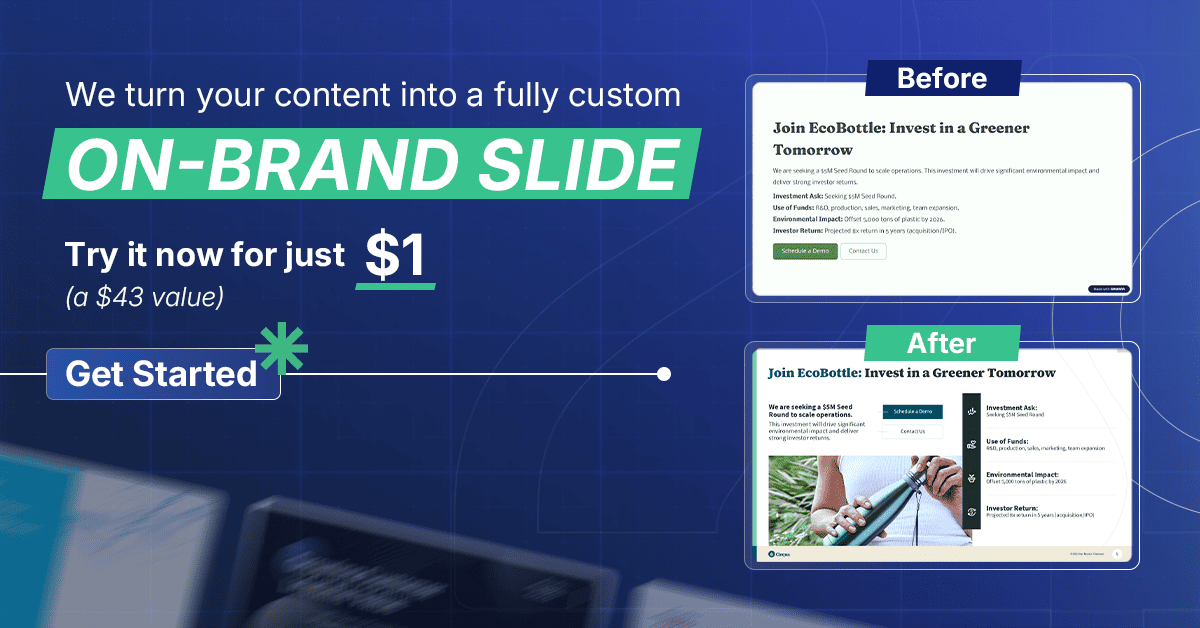
Not quite sure about collaborating with us? Then, our $1 promotion is waiting for you!
Frequently Asked Questions (FAQ)
Still have questions about Canva AI, Canva Presentation Maker, or whether Canva is the right tool for your next presentation?
Below, we have answered some of the most common questions to help you get the most out of the platform.
1. Is Canva AI good for presentations?
Canva AI is one of the easiest AI presentation tools for beginners. Features like Magic Design and Magic Write can generate a complete presentation draft, rewrite text, and suggest layouts in just a few seconds.
While the results are a great starting point, you'll often need to make manual adjustments to improve branding, visual hierarchy, and overall design quality before presenting.
2. How does Canva Presentation Maker work?
Canva Presentation Maker uses AI to generate editable presentations from a text prompt. Simply describe your topic, audience, or objective, and Canva creates a slide deck with suggested layouts, images, and content.
Once the presentation is generated, you can customize every slide using Canva's drag-and-drop editor, templates, and AI editing tools.
3. Can Canva AI create a presentation from scratch?
Yes. Canva AI for presentations can generate an entire presentation from a detailed prompt- Depending on your request, it typically creates between 8 and 20 editable slides with text, layouts, and visuals.
However, the AI relies heavily on Canva's existing template library, so reviewing and refining your final presentation is recommended.
4. Is Canva better than PowerPoint for presentations?
It depends on your needs. Canva is generally better for users who want to create visually appealing presentations quickly, thanks to its templates, AI features, and intuitive interface.
PowerPoint, on the other hand, offers more advanced formatting, animations, and data visualization capabilities, making it a stronger choice for highly customized or data-driven presentations.
5. Is Canva Presentation Maker worth it?
Yes, especially for students, marketers, educators, startups, and professionals who need to create presentations quickly without advanced design skills.
Canva Presentation Maker combines AI-powered content generation, professional templates, and collaboration features in one platform. However, if you need highly customized layouts or strict brand consistency, you’ll still need to refine the presentation manually or work with a professional designer.
Explore more about AI tools and how they’re transforming presentation design: